If your Xiaomi screen keeps getting darker, the cause may be automatic brightness, a battery-saving feature, a display mode, or the phone protecting itself from heat. The exact menu names differ between MIUI and HyperOS versions, and some settings are available only on particular models. Work through the checks below in order: start with brightness controls, then check power, display, accessibility, and temperature settings.
Turn off automatic brightness
Automatic brightness uses the light sensor to adjust the display to your surroundings. A hand, case, screen protector, or changing room light can make the sensor misread the environment and lower brightness unexpectedly.
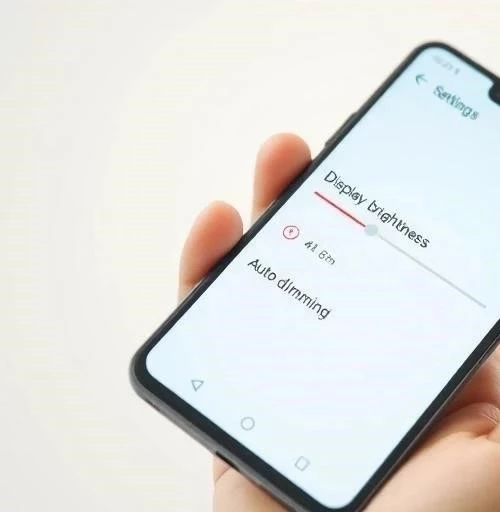
- Open Settings.
- Tap Display & brightness. On some versions, the label is simply Display.
- Switch off Automatic brightness or Auto brightness.
- Adjust the brightness slider manually to a comfortable level.
You may also be able to open Control Center by swiping down from the upper-right side of the screen and adjust the slider there. Depending on the software version, a long press on the brightness slider may reveal the automatic-brightness switch. If the display still changes after automatic brightness is disabled, continue to the next checks: other features can dim the screen independently.
Check Sunlight mode and outdoor display settings
Some Xiaomi phones offer Sunlight mode, which changes how the display behaves in bright conditions. Its availability and effect vary by model. Look in Settings > Display & brightness for Sunlight mode, and test the phone with it switched off. If you do not see this option, your device may not support it, or the setting may have a different name.
Also check whether the brightness slider is already at its maximum. On some displays, the phone can temporarily boost brightness outdoors, then reduce it after you move indoors or the device warms up. This is not always a fault: sustained high brightness can increase heat and battery use.
Disable Battery Saver and app power restrictions
Battery-saving modes can change screen behavior, limit background activity, and reduce power use. The precise effect on brightness varies, but turning these modes off is a useful test.
- Open Settings > Battery or Settings > Battery & performance.
- Turn off Battery Saver or Ultra Battery Saver, if either is active.
- Check whether Battery Saver is scheduled to turn on automatically at a chosen battery percentage.
- Wait a moment and see whether the display remains at the level you selected.
If the dimming happens only inside one app, check that app’s own display, video, reading, or power-saving settings. Some apps dim during playback, navigation, games, or long periods without interaction. Xiaomi’s per-app battery controls can also affect how an app behaves, so avoid changing many app restrictions at once; test the affected app after each adjustment.
Review Reading mode, color, and accessibility settings
Reading mode and similar eye-comfort features usually change color temperature, but they can make the screen seem less bright or appear different in tone. Open Settings > Display & brightness > Reading mode and switch it off temporarily. If there is a schedule, check whether it turns on automatically at sunset or at set hours.
Next, inspect accessibility options. Depending on the software version, Xiaomi may provide a feature called Extra dim, Reduce brightness, or another screen-dimming control. Look under Settings > Additional settings > Accessibility, including the vision or display section. Turn off any option that deliberately lowers the screen brightness. If you use accessibility shortcuts, check whether a button combination or floating shortcut is activating the feature accidentally.
Color schemes, dark mode, and contrast settings can change how content looks, although they do not usually override the main brightness slider. If the screen only appears darker in a particular theme or app, compare it with a standard light theme and another app before changing system-wide display settings.
Increase the screen timeout if it dims before locking
A Xiaomi phone may lower the display shortly before the screen turns off. If this happens after a period of inactivity, the behavior may be connected to the screen timeout rather than automatic brightness.
- Go to Settings > Always-on display & Lock screen, or open Settings > Display & brightness.
- Tap Sleep, Screen timeout, or the similarly named option.
- Select a longer interval, such as two or five minutes, if available.
A longer timeout keeps the screen awake for more time and uses more battery. It does not necessarily disable the brief fade before the display turns off. For privacy and battery life, choose a sensible interval rather than leaving the screen on indefinitely.
Check for overheating
If the screen dims during gaming, video recording, navigation, charging, or use in direct sunlight, the phone may be too hot. Xiaomi devices can reduce display brightness to control temperature and protect internal components. This safety behavior may override the level you set manually, so there may be no switch that permanently disables it.
- Move the phone out of direct sunlight and stop demanding apps for a while.
- Remove a thick case temporarily if it traps heat.
- Avoid gaming or recording video while charging, particularly in a hot room.
- Let the device cool naturally. Do not put it in a refrigerator or freezer.
If brightness returns after the phone cools, temperature was likely the reason. Repeated dimming during light use, especially when the phone does not feel warm, may point to a software issue, a blocked light sensor, or a hardware problem.
Inspect the light sensor and screen protector
Automatic brightness depends on a light sensor near the top of the phone. A poorly fitted screen protector, dirt, or a case covering that area can interfere with readings. Clean the top edge gently with a soft, dry cloth and check that the case does not overlap the sensor. If you are using a new protector, test brightness without the case or protector only if you can do so safely and without damaging the screen.
Do not cover the sensor when testing automatic brightness. If the display reacts oddly only when the phone is held in a certain position, sensor obstruction is a likely explanation. If it behaves normally with automatic brightness disabled, the sensor or its readings may be involved.
Restart and update the phone
A temporary system or app glitch can make display settings behave unexpectedly. Restart the phone, then check brightness again. You can also look for an official update under Settings > About phone > MIUI version or HyperOS version; the wording differs across releases. Install updates through the phone’s official updater and follow its on-screen instructions.
If the problem began immediately after an update, first restart the device and recheck the settings above. Menu names and default behavior may change between releases. Avoid installing unofficial firmware or “brightness booster” apps: they may introduce security, stability, or battery problems and cannot override hardware temperature limits.
When the brightness still changes
Try to identify the pattern: does dimming happen at a particular time, at a certain battery level, in one app, outdoors, or after the phone heats up? That clue helps narrow down the cause. You can also test in Safe mode if you suspect a third-party app, though the procedure varies by Xiaomi model. If the display dims even when automatic brightness, Battery Saver, and dimming accessibility features are off, and the phone is cool, contact Xiaomi support or a qualified repair service.
Before a repair visit, note the phone model, software version, and the steps that reproduce the issue. Back up important data before service. A factory reset should be a last resort, not the first troubleshooting step; if you consider one, back up your data and confirm that you know the account credentials needed to set up the phone again.
Quick checklist
- Disable Automatic brightness and set brightness manually.
- Test with Sunlight mode, Reading mode, and any scheduled display features off.
- Turn off Battery Saver and check whether it is scheduled to activate.
- Look for an Extra dim or similar accessibility option.
- Increase the screen timeout if dimming happens just before the screen locks.
- Let a hot phone cool down and make sure the light sensor is not covered.
- Restart, install available official updates, and seek support if the issue persists.
In most cases, disabling automatic brightness or a scheduled display feature solves unwanted dimming. If none of the settings help, temperature control or a sensor issue is more likely, and the phone may need professional diagnosis.