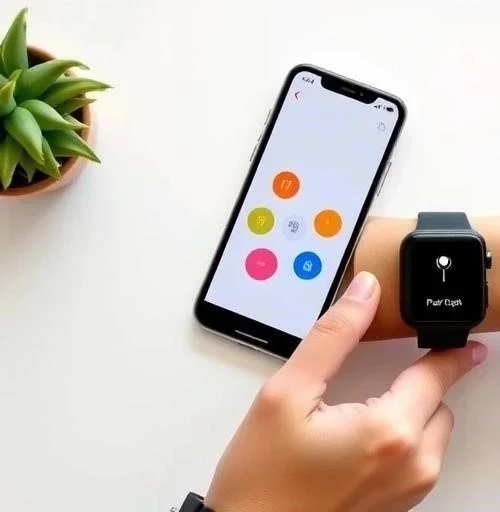
Connecting a Maimo Watch is usually straightforward, but the order of the steps matters․ The watch should normally be paired through the companion app, not directly from the phone’s Bluetooth menu․ Pairing it the right way lets the app synchronize health and activity data, deliver notifications, and manage watch settings․ The exact screens may vary slightly by watch model, app version, and phone operating system, but the process below covers the usual setup․
Before you begin
- Charge the watch and turn it on․ A low battery can interrupt pairing or an initial software update․
- Enable Bluetooth on your phone and keep the watch close to it—ideally within a metre․
- Connect the phone to the internet․ The app may need a connection to sign in, download updates, or complete setup․
- Install the official Maimo Fit app from the Apple App Store or Google Play․ Check the developer and app name before downloading, and avoid unofficial installation files․
- If the watch was previously paired with another phone, unpair it there or reset it according to the model’s instructions․ A watch that is still linked to an old account may not appear as a new device․
Pair the watch through the Maimo Fit app
- Open Maimo Fit on your phone․ Create an account or sign in if the app asks you to․ Review the requested permissions and grant the ones needed for the features you intend to use․
- Choose the option to add a device․ It may be labelled Add device, Pair device, or shown as a plus sign․ Select the watch category or your exact model when prompted․
- Allow the app to search for nearby devices․ When your Maimo Watch appears, tap its name․ If several devices are listed, check the model or identifier shown on the watch to choose the correct one․
- Confirm the pairing request on both screens if asked․ Some models show a code or confirmation prompt; make sure the code matches before accepting․
- Keep the app open and the watch nearby while pairing completes․ If an update is offered, leave both devices powered on and avoid interrupting the process․
On some Android phones, the app may request permission to find nearby devices or access location while searching․ Granting location access can be necessary for Bluetooth discovery on certain Android versions; it does not mean that location tracking must be used for every watch feature․ On an iPhone, approve the Bluetooth prompt and any notification or health permissions you want to enable․ The available options depend on your operating system and watch model․
Set up calls and notifications
After pairing, open the device page in Maimo Fit and choose which alerts the watch should receive․ Enable notifications for the relevant phone apps, and allow Maimo Fit to send notifications in your phone’s system settings․ On Android, battery-saving rules or background restrictions can stop alerts, so allow the app to run in the background if notifications are delayed․ On iPhone, check notification settings for each app and make sure the phone itself is not silencing the alerts․
Some Maimo models support Bluetooth calling and may appear as a second Bluetooth audio device․ If the app offers a separate calling setup, follow its instructions and approve the additional pairing request․ This second connection is not required on every model․ Do not remove the main watch connection simply because a separate audio entry appears․
If the watch does not connect
- It does not appear in the app: Turn Bluetooth off and on, move the devices closer, and restart both․ Check that the watch is not already connected to another phone․
- The phone sees it, but pairing fails: If you previously paired it in the phone’s Bluetooth settings, choose “Forget” or “Unpair” there, then start again inside Maimo Fit․ Also close and reopen the app․
- It keeps disconnecting: Keep Bluetooth enabled, check background and battery settings for Maimo Fit, and install available phone and app updates․ Avoid connecting the watch to multiple phones at once․
- Notifications do not arrive: Confirm that the app has notification permission, the chosen apps are enabled in Maimo Fit, and Do Not Disturb or Focus settings are not blocking alerts․
- The watch was used before: Remove it from the previous phone or account first․ If you cannot access that phone, consult the model’s manual for a factory reset; resetting can erase data stored on the watch․
If these steps do not help, verify that the app supports your specific Maimo model and phone version․ Then consult the official Maimo support information or the instructions supplied with the watch; Avoid repeatedly resetting the device before checking whether the account or old-phone connection is the real obstacle․
Confirm that setup is complete
When pairing succeeds, Maimo Fit should show the watch as connected․ Check that the displayed time is correct, try a manual data sync, and test a notification․ A successful connection is more than seeing the watch in the Bluetooth list: the app must be able to communicate with it․ Pairing through the companion app first, granting only the permissions needed for your chosen features, and keeping the devices close during setup are the most reliable ways to get a Maimo Watch working with your phone․