
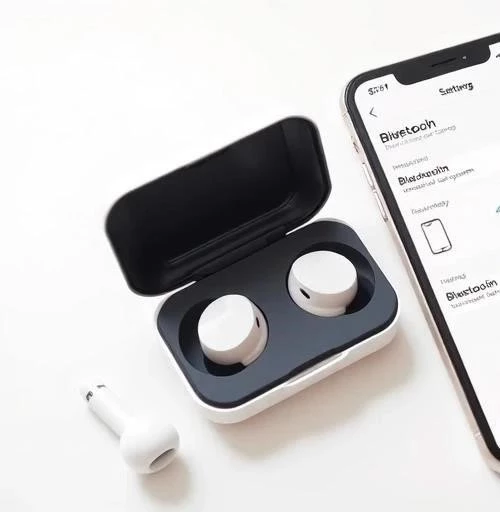
Huawei FreeBuds 5i connect to an iPhone through Bluetooth․ You do not need a Huawei phone to listen to music or make calls: once the earbuds are paired, the iPhone can use them as a wireless audio device․ The basic setup takes only a few minutes․ Keep both earbuds in their charging case, make sure the case has power, and use the iPhone’s Bluetooth settings to complete the connection․
The instructions below cover first-time pairing, reconnecting, checking the connection, and resolving common problems․ Menu labels can differ slightly between iOS versions, but the process is much the same on current iPhones․
Before you start
- Charge the earbuds and case․ A low battery can prevent pairing or cause the connection to drop during setup․ If the case has been unused for a long time, charge it before you begin․
- Keep the iPhone nearby․ Place the phone and the open case close together while pairing․ Move away from other devices that might be trying to connect to the earbuds․
- Check Bluetooth on the iPhone․ Open Settings and make sure Bluetooth is turned on․ You can also use Control Center, but Settings makes it easier to see whether a device has connected․
- Disconnect the earbuds from another device if necessary․ If FreeBuds 5i are already connected to a tablet, computer, or another phone, they may reconnect to that device instead of appearing as available on the iPhone․
How to pair FreeBuds 5i with an iPhone for the first time
- Put both FreeBuds 5i earbuds in the charging case․ Leave the lid open․
- Find the function button on the charging case․ Press and hold it for about two seconds, until the case indicator flashes white․ This puts the earbuds into pairing mode․ If the light does not flash, keep the case open and try holding the button again․
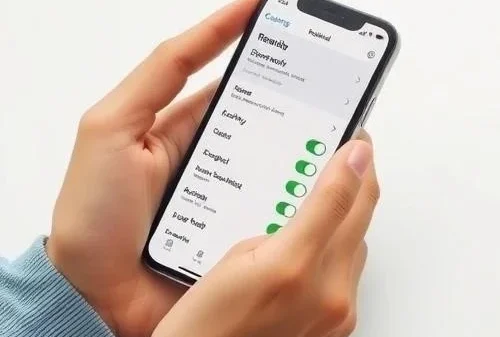
- On the iPhone, open Settings > Bluetooth․ If Bluetooth is off, switch it on and wait for the list of available devices to update․
- Under the list of available devices, tap HUAWEI FreeBuds 5i․ The name may be shown with slightly different capitalization or spacing․
- Wait for the iPhone to finish connecting․ The earbuds should move to the list of connected or previously paired devices, and iOS may display a connection status next to their name․
- Play a short audio track to confirm that sound is coming through the earbuds․ If the iPhone continues playing through its speaker, open the audio output selector and choose FreeBuds 5i․
Keep the case open and the earbuds near the phone until the connection is complete․ If the device name does not appear within a short time, check that the indicator is still flashing white․ Pairing mode may end after a period of inactivity; if that happens, press and hold the case button again․
Connecting again after the first pairing
After a successful first setup, the iPhone normally remembers FreeBuds 5i․ To reconnect, turn on Bluetooth on the iPhone and take the earbuds out of the case․ They should connect automatically if they are charged, nearby, and not already being used by another device․ You can also open Settings > Bluetooth and tap the earbuds’ name if they are listed but not connected․
If they do not reconnect, put the earbuds back in the case, close the lid for several seconds, and then open it again․ Check that Bluetooth is enabled on the iPhone and that the earbuds are not connected to a different device․ If necessary, select FreeBuds 5i in the Bluetooth list to start the connection manually․
Choosing FreeBuds 5i as the audio output
Bluetooth pairing and audio routing are related but not always identical․ An iPhone can remain connected to earbuds while an app, call, or system setting sends sound somewhere else․ To select the earbuds for media, start playing audio, open Control Center, and tap the audio output control in the playback panel․ Choose HUAWEI FreeBuds 5i from the available outputs․
During a phone or video call, check the audio button on the call screen and select the earbuds if the call is using the iPhone receiver or speaker․ Also check the volume on the iPhone and in the app․ Some apps remember a previous output choice, so changing the output for one call or playback session may not automatically change it in every other app․
Using calls, music, and touch controls
Once connected, FreeBuds 5i can play audio from compatible iPhone apps and can be used for calls․ The iPhone handles Bluetooth audio, while the earbuds’ built-in controls can provide convenient playback and call functions․ The exact actions available may depend on the control gesture, firmware, and settings supported by the earbuds․
If a tap or press does not perform the expected action, check the product instructions or the available earbud settings in a compatible Huawei app․ Avoid assuming that every feature offered when the earbuds are used with a Huawei phone is also configurable on iOS․ Basic listening and Bluetooth calling generally do not require an extra app, but access to settings, updates, or some advanced functions may vary by region and software version․
Do you need to install a Huawei app?
No app is needed for the basic Bluetooth connection․ The iPhone’s built-in Bluetooth settings are enough to pair the earbuds and use them for ordinary audio playback and calls․
A Huawei audio or device-management app may provide additional controls, depending on its availability in the App Store in your country and its compatibility with your iOS version and FreeBuds firmware․ Search the App Store for Huawei’s official app listing if you want to check․ App names, supported features, and availability can change, so follow the current information shown by Apple and Huawei rather than installing an app from an unofficial download page․
If you do install a compatible app, follow its on-screen instructions and grant only the permissions needed for the features you want to use․ If the app cannot find the earbuds, first confirm that they are paired in iOS Bluetooth settings․ App detection and Bluetooth pairing are separate steps, and the app may require access to Bluetooth or nearby-device functions to display the earbuds․
Troubleshooting: FreeBuds 5i do not appear in Bluetooth
- Check pairing mode․ Leave the earbuds in the open case and hold the case function button until the indicator flashes white․ A steady light does not necessarily mean that pairing mode is active․
- Move the case closer․ Keep it beside the iPhone and wait a few seconds on the Bluetooth screen․ If several devices are nearby, temporarily turn Bluetooth off on devices that may be trying to connect․
- Check the battery․ Charge the case and earbuds, then repeat the pairing steps․ Confirm that the earbuds are seated correctly in the case․
- Refresh the iPhone’s Bluetooth search․ Turn Bluetooth off and on in Settings > Bluetooth, then reopen the device list; If needed, restart the iPhone and try again․
- Check for an existing connection․ Disconnect FreeBuds 5i from a previously paired phone, computer, or tablet․ The earbuds may prioritize a device that is already saved․
Troubleshooting: paired but no sound
First, confirm that iOS shows FreeBuds 5i as connected․ Then check the audio output selector and choose the earbuds․ Increase the iPhone’s volume while audio is playing, and check the volume and mute controls within the app․ If sound still comes from the phone, pause and restart playback, or disconnect and reconnect the earbuds from the Bluetooth settings․
If there is sound in one app but not another, the issue may be specific to that app or its output settings․ Close and reopen the app, test another audio source, and make sure the iPhone has not selected a different Bluetooth speaker or accessory․ For call audio, choose FreeBuds 5i directly from the call screen’s audio menu․
Troubleshooting: frequent disconnections or uneven audio
Keep the iPhone within normal Bluetooth range and avoid placing the phone behind walls, inside a bag, or next to sources of strong wireless interference․ Make sure the earbuds and case have adequate charge․ If the earbuds are connected to more than one device, disconnect the other device temporarily and test them with the iPhone alone․ This helps identify whether another saved connection is interrupting playback․
If only one earbud plays, place both earbuds in the case, check that they are charging, and take them out together․ Confirm that the audio is not set to an unusual balance on the iPhone: open Settings > Accessibility > Audio & Visual and check the left-right balance control․ If the problem continues, reconnect the earbuds or reset them as described below․
Forget the earbuds and pair them again
Removing the saved Bluetooth entry can help if the iPhone repeatedly fails to connect or if the original pairing was interrupted․ On the iPhone, open Settings > Bluetooth, tap the information button beside HUAWEI FreeBuds 5i, choose Forget This Device, and confirm․ The wording may vary slightly by iOS version․
Then put both earbuds in the case, leave the lid open, and hold the function button until the indicator flashes white․ Return to the iPhone’s Bluetooth screen and select FreeBuds 5i as if pairing for the first time․ Forgetting the device on the iPhone removes its saved pairing; it does not necessarily erase every pairing stored by the earbuds․
Resetting FreeBuds 5i
A reset is a later troubleshooting step, not something normally required for initial setup․ It can be useful if the earbuds do not enter pairing mode, remain associated with old devices, or still fail after the iPhone has forgotten them․ Place both earbuds in the case and keep the lid open․ Press and hold the case function button for about ten seconds, until the indicator flashes red, then release it․ The earbuds should return to their default pairing state․
After resetting, pair them again from Settings > Bluetooth on the iPhone․ If the indicator does not behave as expected, check the current Huawei user guide for the exact reset procedure for your device and firmware․ Do not confuse the short button hold used to enter pairing mode with the longer hold used for a reset․
What to expect when using Huawei earbuds with iOS
FreeBuds 5i use standard Bluetooth for the main connection, so they can work with an iPhone even though they are made by Huawei․ However, some settings and convenience features may be managed differently on iOS than on a Huawei phone․ Certain configuration options, software notifications, or firmware-update methods may depend on a compatible Huawei app and may not be available in every region․
Bluetooth audio quality and supported functions can also depend on the iPhone, iOS version, app, and wireless conditions․ If a feature is missing, first check the earbuds’ current documentation and any official app available for your region․ A missing optional setting does not necessarily mean that the basic Bluetooth connection is faulty․
Quick checklist
- Charge the case and earbuds․
- Put both earbuds in the case and leave the lid open․
- Hold the case function button until the indicator flashes white․
- On the iPhone, open Settings > Bluetooth and turn Bluetooth on․
- Tap HUAWEI FreeBuds 5i in the available-device list․
- If there is no sound, select the earbuds as the audio output․
- If pairing fails, forget the saved device, try again, and reset the earbuds only if simpler steps do not help․
Frequently asked questions
Can FreeBuds 5i connect to an iPhone?
Yes․ Pair them through the iPhone’s Bluetooth settings․ A Huawei phone is not required for basic listening or calls․
Why can’t I see the earbuds on the Bluetooth screen?
They may not be in pairing mode, may have a low battery, or may already be connected to another device․ Open the case, hold its function button until the indicator flashes white, and check the list again․
Do I have to pair them every time?
No․ After the first pairing, the iPhone normally saves the connection and reconnects when the earbuds are available․ Pair them again only if the saved entry was removed, the earbuds were reset, or connection troubleshooting requires a fresh setup․
Will every earbud feature work on iPhone?
Basic Bluetooth audio and calls are available, but the availability of optional controls and settings can vary with iOS, firmware, app support, and region․ Check the current official documentation for a particular feature․
What should I do if the connection keeps failing?
Charge the earbuds, disconnect them from other nearby devices, restart Bluetooth on the iPhone, and try pairing again․ If that does not help, use Forget This Device and repeat setup․ Reset the earbuds only after the simpler steps have failed․
In short: open the FreeBuds 5i case, hold its function button until the indicator flashes white, and select the earbuds in the iPhone’s Bluetooth settings․ Once paired, the iPhone should reconnect automatically when Bluetooth is enabled and the earbuds are available․

6 Comments. Оставить новый
The guidance is practical, especially the reminder to disconnect the earbuds from another device if they do not appear in the iPhone’s available devices list.
The article focuses on the essential first-time pairing steps and presents them in a logical order for iPhone users.
The troubleshooting preparation tips, including keeping the phone nearby and checking the charge, make the setup process more understandable.
This article usefully notes that menu labels may vary across iOS versions while keeping the core Bluetooth setup instructions straightforward.
The article provides a clear sequence for pairing the FreeBuds 5i with an iPhone, from checking the battery to selecting the earbuds in Bluetooth settings.
The steps are easy to follow and explain how to enter pairing mode using the charging case button.