
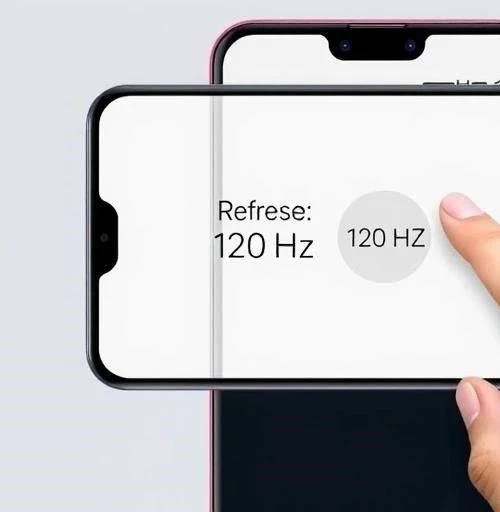
The Redmi Note 12 Pro has a display capable of a refresh rate of up to 120 Hz. A higher refresh rate can make scrolling, animations, and supported games look smoother than they do at 60 Hz. The option may not be active by default, and its name or location can vary slightly between software versions. Use the steps below to select 120 Hz and check what to do if the option is unavailable.
Before changing the setting
First, check that the device is a Redmi Note 12 Pro and not another Redmi Note 12 model. The names are similar, but display features and software menus can differ between models and regional versions. The refresh-rate instructions below apply to the Redmi Note 12 Pro versions with a 120 Hz display.
It is also useful to know that choosing 120 Hz sets the display’s refresh-rate preference; it does not guarantee that every app or video will run at 120 frames per second. Apps, games, video content, power-saving settings, and device temperature can affect the rate actually used at a given moment.
Method 1: Choose 120 Hz in Display settings
- Open Settings on the phone.
- Tap Display. On some software versions, the relevant section may be called Display & brightness.
- Find and open Refresh rate.
- Select Custom, if the screen offers a choice between preset modes and a custom option;
- Choose 120 Hz or the highest available refresh-rate option.
- Return to the Home screen. The change usually takes effect immediately; if it does not, close and reopen the app you are testing.
Menu labels depend on the installed MIUI or HyperOS version, the device region, and system updates. On some versions, the refresh-rate choices appear directly under Settings > Display, without an intermediate Custom screen. If you do not see the setting immediately, use the search box at the top of Settings and search for refresh rate or 120 Hz.
Method 2: Check for a preset mode
Some software versions show preset choices instead of a custom selection. A mode such as Default or Automatic may let the phone adjust the refresh rate according to what is on screen. A mode labelled High may enable the higher rate, but the label does not always mean the display will stay at 120 Hz in every situation.
If there is a separate 120 Hz choice, select it for the highest refresh-rate preference. If the menu only offers Default and High, choose High to request the smoother display mode. You can return to the same menu later to change the selection or reduce it to save power.
How to check whether the change is noticeable
Open an app with smooth scrolling, such as Settings, a web browser, or a long social-media feed, and scroll at a steady speed. Compared with 60 Hz, movement and on-screen transitions may appear smoother. The difference is often easiest to notice while scrolling through text or moving between menus.
A visual impression is not a precise measurement. Some content is produced at a lower frame rate, and some apps limit their own frame rate. A 30-frame-per-second video, for example, will not become a 120-frame-per-second video simply because the display is set to 120 Hz. Similarly, a game must support higher frame rates, and its own graphics or performance settings may need to be adjusted.
If 120 Hz is missing or does not seem to work
- Search Settings. Enter “refresh rate” in the Settings search field. The menu name and location can change after software updates.
- Check Battery Saver. Power-saving modes can restrict performance or change display behaviour. Turn Battery Saver off temporarily, then check the refresh-rate selection again.
- Review the selected mode. Confirm that 120 Hz or High is selected rather than Default or a 60 Hz option;
- Restart the phone. If the selection appears correct but the interface still seems limited, restart the device and test again.
- Update the system. Open Settings > About phone and check for an official system update. Menu wording and display controls may differ between releases.
- Check the app itself. Test scrolling in more than one app. An individual app or game may impose its own frame-rate limit or may not support a high refresh rate.
- Allow the phone to cool. If the device is hot, the system may reduce performance to manage temperature. Let it cool and retest under normal conditions.
- Verify the model. If the expected setting is absent, check the model name in Settings > About phone. Do not assume that all phones in the Redmi Note 12 family have identical menus or specifications.
If none of these checks helps, consult Xiaomi support for the exact model and software version. Avoid installing third-party “refresh-rate unlocker” apps or changing hidden system settings to force a mode. Such workarounds may not override app or system limits and can cause unexpected behaviour.
Does 120 Hz use more battery?
It can. Updating the display more frequently may use more power than operating at 60 Hz, although actual battery life depends on brightness, the apps being used, network conditions, and other factors. If longer battery life matters more than smoother scrolling, select 60 Hz or use the phone’s default or automatic mode, if available. You can switch back to 120 Hz whenever you want.
Using 120 Hz does not damage the screen in normal use. It is a display mode provided for the device. However, keeping the phone at a higher refresh rate may increase power consumption, and performance can vary with workload and temperature.
Do not confuse refresh rate with touch sampling rate
Refresh rate describes how often the display can update the image. Touch sampling rate describes how frequently the phone checks for touch input. These are different specifications. Selecting 120 Hz changes the display refresh-rate preference; it does not necessarily change touch sampling or make an app render more frames.
Quick summary
To enable the highest refresh-rate option, open Settings > Display (or Display & brightness), tap Refresh rate, and select 120 Hz. If the phone presents preset modes, choose High. Then test smooth scrolling in more than one app. If the option is missing, search Settings, disable Battery Saver temporarily, check the exact model and software version, and restart the phone. The selected mode is a preference, not a guarantee that every app or video will run at 120 frames per second.

1 Comment. Оставить новый
The instructions clearly explain how to select a 120 Hz refresh rate and note that menu names can vary by software version. The distinction between the display’s refresh-rate setting and the frame rate used by individual apps is also useful.