
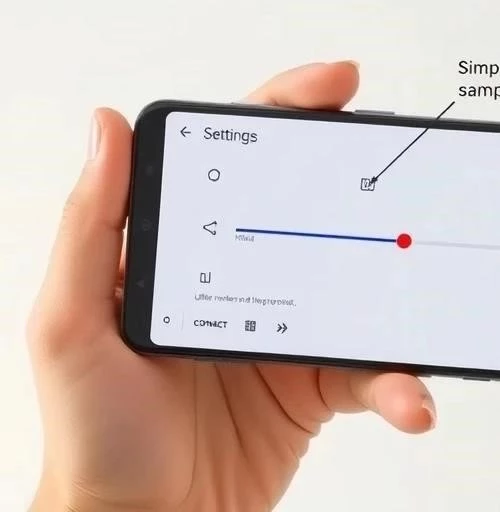
Your Redmi can turn tiny menus into comfortable, readable text without making you squint at every message. The controls are tucked into Settings, and the exact labels can vary a little between MIUI and HyperOS versions. Think of them as two separate dials: one changes the letters; the other changes the scale of the whole screen.
Method 1: Enlarge the font
- Open Settings.
- Tap Display or Display & brightness.
- Choose Text size, Font size, or a similarly named option.
- Move the slider toward the larger end. Use the preview to judge how messages and menus will look.
- Tap Apply or simply leave the screen if your phone saves the choice automatically.
On some Redmi models, the text-size control appears under Settings > Accessibility > Vision. If you cannot find it, use the search box at the top of Settings and enter text size or font size. Searching is often faster than exploring every menu, particularly when a software update has rearranged the settings.
Method 2: Make everything on screen larger
If larger letters are not enough, adjust the display size as well. Look in Settings > Display for Display size, Screen display, or Lite mode, depending on your software version. If available, move the display-size slider one step at a time. This enlarges more than text: icons, buttons, and other interface elements may grow too.
Some Redmi phones offer Lite mode under Settings > Home screen or in the display settings. It can provide a simpler layout with larger icons and clearer controls. It is useful for anyone who wants a calmer, easier-to-read home screen, though it changes the overall layout rather than just the letters.
Choose a comfortable size, not the biggest one
Turn the font up gradually, then open a conversation, a Settings page, and a web page. These are your practical test rooms. If words are still cramped, increase the size another step. If buttons become awkward to reach or lines break in strange places, move the slider back slightly. The best setting is the largest one that still lets the screen feel natural.
There is a trade-off: very large text may show fewer messages or menu items at once. That is normal. It does not mean your phone is broken; the screen is simply giving each word more room.
Make individual apps easier to read
Some apps follow the phone’s system font setting; others have their own controls. In a reading app, browser, or messaging app, check Settings for options such as Text size, Appearance, or Accessibility. In a browser, you may also be able to zoom in on a page. App-specific settings are handy when you want larger articles but prefer your home screen and other menus to stay compact.
For extra help: magnification and bold text
If you need to inspect only a small area, try Android’s magnification feature. Open Settings > Additional settings > Accessibility, then look under Vision for Magnification. The path and activation gesture differ by version, so follow the instructions shown on your phone. Magnification enlarges part of the screen on demand; it is different from permanently increasing the font.
Also check Accessibility for High contrast text or a bold-text option if your version provides one. These can make letters stand out without dramatically enlarging them. If you use both a large font and a changed display size, test the result in several apps: some layouts may not adapt equally well;
If the setting seems missing
- Search Settings for font, text, or display size.
- Check whether your phone calls its software MIUI or HyperOS; menu names can differ.
- Install available system updates, then search again if the menu path has changed.
- Restart the phone if the new size does not appear straight away.
Changing font size is reversible: return to the same slider and choose a smaller setting whenever you like. It normally changes the interface without affecting your photos, files, or apps. Give your eyes a moment to adjust, then keep the setting that makes reading feel effortless—not like a tiny-print puzzle.



9 Comments. Оставить новый
A tiny slider can make a surprisingly large difference to daily comfort. I like that the advice ends with real-world checks, because the right setting is discovered through use, not guessed from a number.
The note about changing menu labels across software versions is especially practical. It saves readers from assuming they have missed something when their Redmi simply has a different map.
I like the idea of treating the display as a room with two kinds of furniture: letters and everything around them. Adjusting one at a time makes it much easier to find comfort without accidentally turning the whole interface into a giant billboard.
Lite mode sounds like more than a size adjustment; it is a way to quiet the visual noise. For someone who prefers a simpler home screen, that calmer layout could matter as much as larger letters.
The Settings search box deserves a little award here. Software updates love moving familiar controls around like mischievous stagehands, and searching by name is often the quickest way to bring the right setting back into view.
This turns a small accessibility adjustment into something refreshingly low-pressure: make one change, see how it feels, and adjust again. Your phone should adapt to your eyes, not the other way around.
Testing the change in a message, a menu, and a web page is a clever little field trial. A setting can look perfect in its preview, then behave very differently in the wild.
I appreciate the distinction between enlarging text and enlarging the whole interface. They sound like twins, but one changes the handwriting while the other rearranges the furniture.
A useful reminder that readability is personal, not a contest to reach the largest possible slider setting. The best choice is the one that lets your eyes relax while the buttons remain easy to use.