
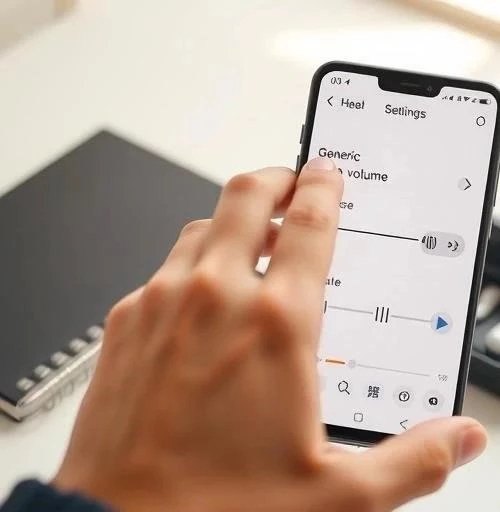
Your Xiaomi headphones may not be quiet so much as caught between several volume controls‚ a sleepy Bluetooth connection‚ and an equalizer with the wrong idea of “full.” Before turning the dial to maximum‚ work through this little sound check. The goal is clearer‚ stronger audio—not a long-term argument with your ears.
Check both volume controls
Start playing audio‚ then press the phone’s volume-up button. On some Xiaomi phones‚ media volume appears only while music or video is playing. If the headphones have touch or button controls‚ raise their volume too: certain models keep an earbud-level setting separate from the phone’s slider.
For Bluetooth headphones‚ open Settings → Bluetooth‚ tap the arrow or device details beside your Xiaomi headphones‚ and check that they are connected for media audio. Disconnect and reconnect them if the sound remains unusually low. A quick restart of both phone and headphones can also clear a stuck volume setting.
Give the equalizer a sensible job
On many Xiaomi phones‚ look under Settings → Sound & vibration for sound effects‚ an equalizer‚ or headphone settings. The exact names and options vary by model and HyperOS or MIUI version. If an equalizer is available‚ try the “Normal” or “Balanced” preset first. Then make small adjustments: a modest lift in the middle frequencies can make voices easier to hear‚ while excessive bass can make music sound muddy rather than louder.
Some Xiaomi earbuds can also be adjusted in Xiaomi’s companion app‚ where available. Check for an equalizer‚ firmware update‚ or fit test. App features depend on the headphone model and region‚ so an option shown in a guide may not appear on your device.
Improve the fit before boosting the signal
A loose ear tip lets sound escape like air from a tiny balloon. Try the other supplied tip sizes‚ and gently rotate each earbud until it seals comfortably. For over-ear headphones‚ make sure the cups sit fully around your ears. A good seal often restores bass and detail without any extra volume. Clean ear tips and speaker mesh carefully with a dry‚ soft cloth; never push a pin or liquid into the speaker opening.
Troubleshoot Bluetooth and the audio source
- Compare two apps or tracks. If only one sounds quiet‚ check that app’s volume‚ audio settings‚ or recording level.
- Move closer to the phone and away from crowded wireless devices. Then forget the headphones in Bluetooth settings‚ pair them again‚ and test.
- Check for a phone or headphone software update. If the problem began after changing sound effects‚ switch them off and compare.
On some Android phones‚ Developer options include Disable absolute volume. This can separate the phone’s Bluetooth slider from the headphones’ own level‚ which may help when the two controls are out of sync. It is not a universal loudness boost: use it only if you understand the setting‚ reconnect the headphones afterward‚ and adjust both controls gradually. Menu availability and behavior vary.
If they are wired
Push the plug fully into the jack or adapter‚ remove a bulky case if it blocks the connection‚ and test another audio source. A loose plug or faulty adapter can make sound faint or uneven. Inspect the connector and phone port for visible debris‚ but do not scrape inside the port.
Keep the finale comfortable
Don’t bypass a built-in hearing-safety limit or use an unknown “volume booster” app to force extra output; it can distort sound and may damage hearing. If one earbud is much quieter‚ or the headphones stay weak across devices and apps‚ check the manual‚ reset or service the model‚ and contact Xiaomi support. The best fix should make every note easier to hear—not make tomorrow’s silence louder.




6 Comments. Оставить новый
A refreshingly practical guide: it remembers that headphones and phones can each have their own volume, like two musicians who haven’t agreed on the key.
This makes troubleshooting feel less like wrestling with a phone and more like tuning an instrument. The advice to start with “Normal” is sensible and easy to follow.
Clear, calm, and considerate of hearing safety. I especially appreciate the idea that a better seal can improve the listening experience without asking the volume slider to do all the work.
A useful little sound-check checklist with just enough personality to keep it from reading like a settings manual. The muddy-bass warning is a good reminder that louder and clearer aren’t twins.
The reminder that menus vary by model and software version is a welcome touch. It saves readers from hunting for a setting that may have moved—or never existed.
I like that this treats quiet audio as a small mystery to investigate, not a reason to immediately crank every slider. The “tiny balloon” image makes the fit advice especially memorable.