
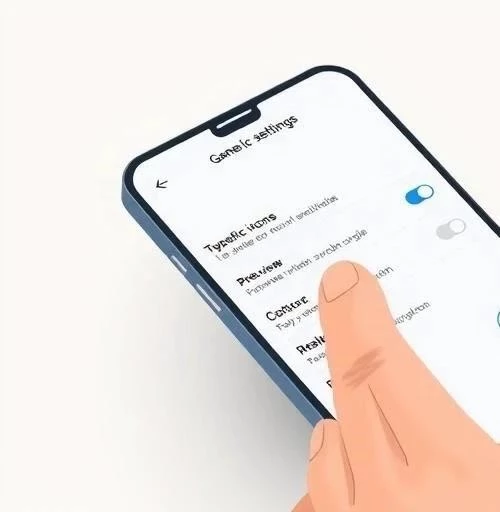
If the text on your Xiaomi looks unusual‚ you can switch back to the phone’s default font without resetting the device․ The exact menu names vary between MIUI and HyperOS versions‚ regions‚ and models‚ but the usual route is through the Themes app or Display settings․ A font change normally affects menus and system apps; it does not change your photos‚ messages‚ or other personal data․
Method 1: Restore the default font in Themes
- Open the Themes app․ If it is not on your home screen‚ find it in the app drawer or search for “Themes” in Settings․
- Tap Profile or the person-shaped icon‚ then open Fonts or My fonts․ On some versions‚ this is listed under My page․
- Choose the system or default font․ It may be called Default‚ Roboto‚ or MiSans‚ depending on your software and region․
- Tap Apply․ If prompted‚ allow the phone to restart or confirm the change․
If you do not see a Fonts section‚ open Themes‚ tap the search icon‚ and look for the default system font․ Availability and labels can differ by region․ Select the built-in option rather than downloading another font․
Method 2: Check Display settings
On some Xiaomi phones‚ font controls are grouped with display options․ Open Settings and look for Display & brightness‚ Display‚ or Personalization․ Select Font or Font settings‚ choose the standard option‚ and apply it․ You can also search Settings for “font” to find the relevant page quickly․
Reset the font size separately
A font can look wrong because it is too large‚ too small‚ bold‚ or displayed at an unusual scale—not because its typeface changed․ In Settings‚ open Display & brightness and tap Text size or Font size․ Move the slider back to its middle or recommended position․ If available‚ check Accessibility for magnification or high-contrast text settings too․ These options affect readability but are separate from the selected font․
If the default font does not apply
- Close and reopen Themes‚ then select and apply the default font again․
- Restart the phone․ Some interface elements update only after a restart․
- Check for a system update under Settings > About phone; menu paths may change after updates․
- If you use a complete theme‚ open Themes and apply the default theme․ This may also change icons‚ colors‚ or wallpaper‚ so review the preview first․
- If the Themes app is stuck‚ go to Settings > Apps > Manage apps > Themes and clear its cache‚ if that option is available․ Avoid clearing app data unless you understand that it may remove local settings or downloads․
Important notes
A factory reset is not normally needed to restore a font․ Avoid installing unknown font packages or using root-level tools for this simple change; they can cause display problems or affect system security․ If you changed fonts with a third-party app‚ undo the change in that app first‚ then apply Xiaomi’s built-in default from Themes or Settings․ On a work-managed phone‚ some appearance options may be restricted by the administrator․
In short: open Themes‚ go to your fonts‚ select the built-in default‚ and apply it․ Use Display settings to adjust text size separately․ If your menus have different names‚ search Settings for “font” or check the Themes app’s profile page․


2 Comments. Оставить новый
This is a clear, practical guide. I especially appreciate the reminder that font settings vary across MIUI and HyperOS, along with the separate advice for adjusting text size.
Helpful instructions for restoring the default font without resetting the phone. The Settings search tip is useful when menu names or locations differ between devices.