
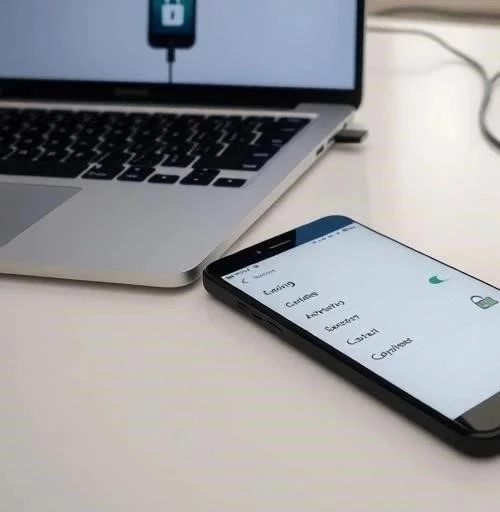
Root access gives Android apps administrator-level control. On a Xiaomi phone, it can enable advanced backups, system-level customization, and tools that need privileged access. It also weakens some security protections and can break updates or apps. Rooting is therefore best treated as a deliberate modification—not a routine performance upgrade. The safest general approach is to unlock the bootloader through Xiaomi’s official process and then use Magisk to patch the correct image for your exact firmware.
Before you begin
There is no universal Xiaomi rooting file or set of commands. Instructions depend on the precise model, regional variant, Android version, and installed firmware. A file for a similar-looking Redmi or Xiaomi phone may still be incompatible. Confirm the full model number and software build in Settings, then find instructions and firmware specifically for that combination. Do not proceed if you cannot verify the image you intend to use.
- Back up everything. Bootloader unlocking normally erases user data. Copy photos, documents, authenticator recovery codes, and other important files somewhere off the phone.
- Charge the phone and use a reliable computer, cable, and USB port. A failed connection during flashing can complicate recovery.
- Download stock firmware matching the installed build, plus Xiaomi’s official bootloader-unlock utility and Magisk from its official project source. Keep an untouched copy of the original boot image.
- Understand the trade-offs. Root can reduce device security, affect warranty or support depending on local law and policy, interfere with banking, streaming, or work apps, and complicate over-the-air updates.
Unlock the bootloader officially
Enable Developer options by tapping the MIUI or HyperOS version entry in About phone repeatedly, then open Developer options; Enable OEM unlocking and USB debugging if those settings are available. In the Mi Unlock status menu, bind the phone to the Xiaomi account you intend to use, following the on-screen instructions. Use Xiaomi’s official Mi Unlock tool on a Windows computer and sign in with that same account.
Follow the tool’s prompts while the phone is in fastboot mode. Xiaomi’s eligibility rules, account requirements, waiting periods, and availability can differ by model, region, and current software policy; HyperOS devices may have additional restrictions. Check Xiaomi’s current official instructions rather than relying on an old bypass or a third-party unlock service. If the tool reports a waiting period, wait and retry as directed. Do not use unofficial methods to evade account or regional checks.
Unlocking usually triggers a factory reset. After it completes, set up the phone again and confirm that the bootloader is unlocked. An unlocked bootloader can make it easier for someone with physical access to tamper with the device, so use a strong screen lock and avoid storing sensitive data unless you accept that risk.
Obtain and patch the correct image
Determine which partition your firmware uses for the boot image. Depending on the device and Android version, Magisk may need to patch boot.img or init_boot.img. Some devices use other arrangements. Check the official Magisk installation guidance and trusted instructions for your exact model; do not guess based on a guide for another Xiaomi phone.
Extract the required image from the exact stock firmware build installed on the phone. If the firmware is packaged in a format you cannot safely extract, find a trusted, model-specific guide or stop and get help rather than substituting an image from a different build. Transfer the image to the phone, install the official Magisk app, choose its option to install or patch a file, and select that image. Magisk creates a patched image; copy it back to the computer and keep the original untouched.
Flash the patched image
Install the appropriate Android platform-tools on the computer and confirm that fastboot recognizes the phone. For example, fastboot devices should display a device identifier. The actual partition name and flashing procedure must be verified for your model and firmware. A common pattern on some devices is:
fastboot flash boot magisk_patched.img
This is an example, not a universal command. If your phone requires a patched init_boot, a different partition, a temporary boot, or another procedure, flashing the example above can cause a boot failure. Never flash both partitions “just in case,” and do not use a patched file unless you know exactly where it came from and which build it matches. Follow the device-specific instructions, then reboot using the documented method.
Verify root and plan for updates
Once Android starts, open Magisk and check that it reports an installed version. Grant superuser access only to apps you trust; root permission can let an app read or alter sensitive data. If the phone does not boot, stop repeating flash commands. Use the matching stock firmware and a reliable recovery guide for your exact model, or seek experienced assistance. A wrong image or command can make recovery harder.
Root changes the normal update process. An OTA update may fail, remove root, or leave the phone unable to boot if modified and stock components do not match. Before updating, read the update instructions for your device and Magisk version, and keep a copy of the matching stock files. Do not relock the bootloader while custom or modified partitions are installed: relocking an incompatible setup can brick the phone. Relock only when the device is fully restored to verified, region-appropriate stock software and a model-specific guide confirms it is safe.
Bottom line
The responsible route is straightforward in principle: verify the exact device and firmware, back up data, unlock only through Xiaomi’s approved process, patch the correct stock image with Magisk, and flash only according to model-specific instructions. If any detail—especially the image or partition—is uncertain, pause. A cautious decision not to root is safer than an irreversible guess.


9 Comments. Оставить новый
This is a responsible introduction, but it is not yet a complete how-to: the final sentence is cut off before the process is explained. That limitation should be clear so nobody mistakes the excerpt for sufficient flashing instructions.
The article does a good job of framing rooting as a trade-off rather than a simple upgrade. Its emphasis on matching firmware to the exact model is especially important, since a mismatched image can cause serious problems.
The warnings about data loss and app compatibility are useful, but the instructions shown here end mid-sentence. Readers should wait for a complete, model-specific guide before attempting any bootloader or flashing steps.
The distinction between rooting for a specific need and rooting for general performance is sensible. It would be helpful to explain that root access does not inherently make a phone faster or improve battery life.
The overview is balanced and accessible, particularly in its discussion of security and updates. Because unlocking generally wipes the phone, the backup warning deserves to remain prominent throughout any follow-up steps.
Mentioning banking, streaming, and work apps gives readers practical examples of what may stop working. A further note that app behavior can change over time would make the compatibility warning even more useful.
The recommendation to use Xiaomi’s official unlock process is a sound starting point. Since eligibility and waiting requirements can differ, readers should check the current official instructions for their device and region before proceeding.
The article appropriately cautions that instructions vary by model, region, and firmware. I would also recommend telling readers to verify every download and avoid unofficial files, since the wrong or tampered image can create both security and recovery problems.
I appreciate the advice to make a backup and preserve the original boot image. Those precautions make the risks more concrete and could help readers recover if a modification does not work as expected.