
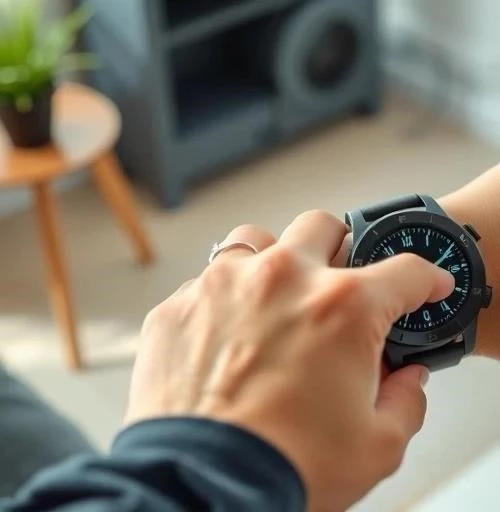
Setting up an Apple Watch Ultra involves pairing it with an iPhone, choosing essential settings and adjusting the display and controls. Menu names may vary slightly by watchOS version. Keep the watch and iPhone charged, and connect the iPhone to Wi-Fi or a mobile network before you begin.
Prepare and pair the devices
- Turn on the watch by pressing and holding the side button until the Apple logo appears. If it does not start, charge it first.
- Unlock the iPhone, turn on Bluetooth and hold it close to the watch. Tap Continue when the pairing prompt appears. Alternatively, open the Watch app on the iPhone and choose All Watches and Add Watch.
- Point the iPhone camera at the animation on the watch. If scanning does not work, select the option to pair manually and follow the instructions.
- Choose whether to set up the watch as new or restore a backup. Sign in with the Apple Account associated with the iPhone if prompted, then accept the terms and choose a wrist and text size.
Keep both devices near each other while settings and apps sync. This can take several minutes. If the watch was previously paired to another person, that owner may need to unpair it and remove Activation Lock before setup can continue.
Configure important options
During setup, choose whether to create a passcode. A passcode helps protect information on the watch; it can also be required for features such as Apple Pay. Set up cellular service during pairing if your model and carrier support it, or do this later in the Watch app. A cellular plan may require a separate fee.
Review the prompts for location services, Siri, notifications, health features and emergency information. Choose only the options you want, and check permissions later in the iPhone’s Watch app. Health and emergency features depend on location, device settings and availability in your region; they are not a substitute for professional care or emergency services.
Set the time and watch face
Apple Watch normally gets its time, date and time zone from the paired iPhone. To correct them, check that the iPhone’s date, time and time zone are accurate, and that automatic time settings are enabled where available. The watch can display a time ahead: open Settings on the watch, tap Clock, then adjust +0 min. This changes the displayed time only; alarms and notifications use the actual time.
Press and hold the watch face to browse available faces. Swipe to choose one, tap Edit to change its colors or complications, and use the Digital Crown to adjust options. Complications can show information such as weather, activity or a calendar. You can also add and arrange faces in the iPhone Watch app.
Personalize controls and check setup
Use the iPhone Watch app to manage app installation, notifications, display, sounds and available features. On the watch, open Settings to adjust brightness, wake behavior, accessibility and other preferences. The Action button can be configured for a supported action; choose its function in Settings and review any on-screen instructions. Button choices and features can differ by software version.
Finally, check that the watch shows a connection to the iPhone, install any offered software update, and confirm that the correct wrist orientation is selected. If pairing stalls, restart both devices, keep them close, and try again. For persistent errors, consult Apple Support, especially if the watch requests credentials for an account you do not own.
9 Comments. Оставить новый
The guidance about reviewing permissions later in the Watch app gives readers flexibility during setup.
The distinction between setting up cellular service during pairing and doing it later is useful.
The article covers the main setup choices without making the process sound more complicated than it is.
The notes on passcodes and Apple Pay provide helpful context for choosing security settings.
The explanation of Activation Lock makes an important setup requirement easy to notice.
The pairing steps are presented in a clear order, including the manual option if camera scanning does not work.
It is helpful that the article notes menu names can differ between watchOS versions.
The article appropriately points out that health and emergency features depend on settings and regional availability.
The reminder to keep both devices nearby during syncing is a useful practical detail.