
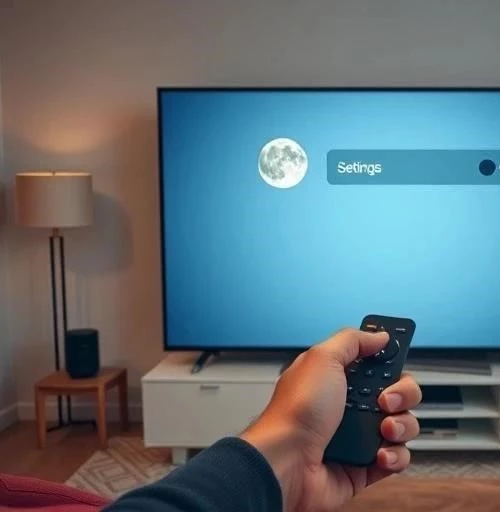
Your Xiaomi TV has a tiny night watchman: it dims the screen, starts a screensaver, or switches off when it thinks nobody is watching. Helpful when you’ve wandered away; less charming when the final scene of a film disappears while you’re still on the sofa. The good news is that “sleep mode” can mean several different settings, so the fix is usually a short menu adventure rather than a complicated repair.
Menu names vary by model, region, and software version. Xiaomi TVs may use Google TV, Android TV, or a Xiaomi interface built on one of them. Follow the closest matching route below; if a label is missing, look for its equivalent under Settings, Device Preferences, or System.
Disable the sleep timer
A sleep timer tells the TV to turn off after a chosen period, even if a show is playing. To cancel it:
- Press the remote’s Settings button, or press Home and open the gear icon.
- Open Settings and look for Timers, Sleep timer, or Power.
- Select Sleep timer, then choose Off or Cancel.
On some models, the timer is inside Device Preferences > Timers. On others, it appears in a quick-settings panel. If the TV switches off at roughly the same interval each time, this is the first setting to check.
Stop automatic shutdown after inactivity
If the screen goes dark while paused or left on a menu, the cause may be an inactivity or energy-saving rule rather than the sleep timer.
- Go to Settings > System or Device Preferences.
- Open Power, Energy saver, or Power and energy.
- Find a setting such as Turn off TV after, Auto power off, or Idle TV standby.
- Set it to Never or the longest available interval.
Some versions place this option under Settings > Device Preferences > Screensaver, alongside a separate inactivity timer. Check both places. A longer interval is a useful compromise if “Never” is not offered.
Adjust the screensaver and ambient display
A screensaver can look like sleep mode: the picture disappears, artwork or a clock appears, and the TV may later enter standby. Open Settings > System > Ambient mode, or Device Preferences > Screen saver. Choose when the screensaver starts and, if available, turn off Put device to sleep or increase its delay.
Turning off the screensaver alone may not prevent the TV from powering down. Think of these as two doors: one controls what appears on the screen; the other controls whether the television remains awake. Check the power or inactivity settings as well.
Check HDMI-CEC and connected devices
If the TV sleeps when a console, streaming box, or soundbar turns off, HDMI-CEC may be sending a power command. Xiaomi may label CEC as HDMI control, CEC, or Device control, often under Settings > Channels & Inputs > Inputs.
Turn off the CEC option that lets connected devices switch the TV off, or disable HDMI-CEC temporarily to test. The wording differs between models, and disabling CEC may also stop one-remote control or automatic input switching. If the TV stays awake afterward, adjust the connected device’s power settings instead of disabling every feature permanently.
When the setting does not stay changed
- Restart the TV: hold the remote’s power button and choose Restart, if offered. Otherwise, switch the TV off, unplug it for about a minute, and reconnect it.
- Check for updates: open Settings > System > About > System update (the route may vary). Install updates only through the TV’s own update menu.
- Test without accessories: disconnect HDMI devices briefly; If shutdown stops, reconnect them one at a time to identify the trigger.
- Look for app behavior: some apps pause playback or stop sending activity signals. Test another app or a live input before changing more settings.
A factory reset is a last resort: it removes accounts, apps, and preferences, and is rarely the first answer to a timer. Consider it only after recording your settings and trying a restart and software update.
Quick check before movie night
Cancel the sleep timer, lengthen or disable the idle shutdown, review the screensaver’s sleep delay, and test HDMI-CEC if an accessory is involved. Then play something for longer than the usual shutdown interval. If the TV remains on, the culprit has been found—and the closing credits can finish without an unexpected blackout.
One sensible note: keeping a television awake uses more electricity than letting it sleep. If you want uninterrupted viewing only during long sessions, choose a generous timer rather than permanently disabling every power-saving feature. Your Xiaomi can stay awake for the plot and still take a nap when the room is truly empty.
5 Comments. Оставить новый
The distinction between a sleep timer and an inactivity rule is the article’s quiet superpower. Two settings that look alike can cause very different kinds of interrupted evenings.
This reads like a small map for escaping the maze of TV menus. I especially appreciate the practical clue about shutdowns happening at roughly the same interval.
A refreshingly calm troubleshooting guide. The reminder that Xiaomi menus differ by model is especially helpful; it saves readers from assuming their TV has vanished into a parallel settings universe.
Useful, approachable, and just whimsical enough to make settings feel less like an appliance exam. The advice to check both power and screensaver options is a thoughtful detail.
I like the “tiny night watchman” image—it turns a mildly annoying setting into a character with a job description. The practical menu paths make the guide useful without losing its charm.