
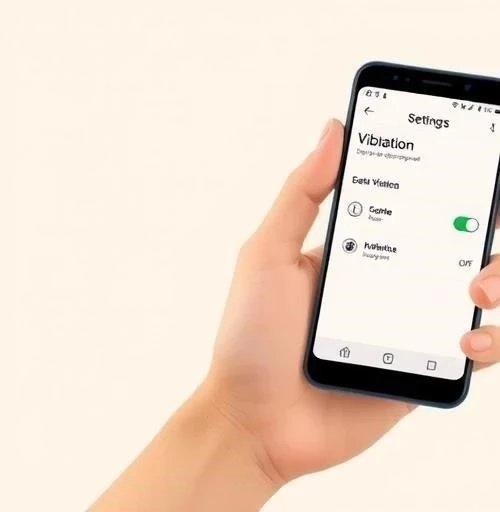
Xiaomi phones can vibrate for calls, notifications, alarms, keyboard input, and system actions such as tapping navigation buttons․ These settings are controlled in different places, so switching off one vibration option may not stop all vibration․ The exact menu names and paths depend on the phone model and whether it runs MIUI or HyperOS․ The steps below cover the most common settings; if a label differs, look for a similarly named option under Sound & vibration, Notifications, or the settings search․
Turn off vibration for calls and notifications
To disable vibration when the phone rings or receives notifications, open the system sound settings:
- Open Settings․
- Tap Sound & vibration․ On some versions, this may be called Sound or appear under Sounds and notifications․
- Find the vibration controls for calls and notifications․
- Switch off Vibrate for calls and Vibrate in silent mode, if these options are shown․
- Set the notification vibration option to off or choose the lowest available setting․
Some Xiaomi versions display a vibration intensity slider instead of a separate on/off switch․ Move the slider to the minimum, or select None if that choice is available․ On other phones, call vibration is configured separately from notification vibration․ Check both controls if you want the phone to remain completely still when a call or alert arrives․
You can also use the Settings search bar․ Search for terms such as vibration, vibrate for calls, or haptic feedback․ This is often quicker than following a menu path that may have changed after a software update․
Use silent mode or Do Not Disturb
Silent mode can mute sounds, but it does not always disable vibration․ Open the volume panel with the volume button, then select the silent or bell icon․ Afterward, check the sound settings to see whether Vibrate in silent mode remains enabled․ If it does, switch that option off as well․
For a temporary period without interruptions, use Do Not Disturb․ It is usually available in Settings > Sound & vibration > Do Not Disturb, or as a tile in Quick Settings․ You can configure whether calls, messages, or alarms are allowed during this mode and set a schedule․ Do Not Disturb is useful when vibration should be suppressed temporarily; it is not a replacement for disabling vibration throughout the phone․
Disable vibration for individual apps
An app may have its own notification settings, which can override or add to the phone-wide settings․ To change them, open Settings > Notifications & status bar or Notifications & Control center, then select App notifications․ Choose the relevant app and inspect its notification categories, such as messages, reminders, or incoming calls․
Depending on the software version, you may be able to switch off vibration for a category, change its alert style, or disable that category entirely․ Disabling a category also stops its notifications, so use this option only if that is what you intend․ Some apps provide a separate vibration control inside their own settings․ Messaging apps, for example, may let you adjust vibration independently for conversations or group chats․
If vibration continues after changing the general notification setting, check the app that generated the alert․ An app-specific setting is a common reason why one service still vibrates while other notifications do not․
Turn off keyboard vibration
Keyboard vibration is usually controlled by the keyboard app rather than the phone’s call settings․ For Gboard, open a text field so the keyboard appears, tap the gear icon, and open Preferences․ Find Haptic feedback on keypress and switch it off․ If the keyboard has a vibration-strength slider, set it to zero․
Another route on many phones is Settings > Additional settings > Languages & input․ Select the current keyboard and open its preferences․ Xiaomi devices may include more than one keyboard, so confirm which one is active before changing the setting․ If you use a third-party keyboard, open that app’s settings and look for Haptic feedback, Vibration, or Keypress feedback․
Disable vibration from buttons and system actions
The phone may vibrate when you tap navigation controls, use gestures, unlock the screen, or interact with system menus․ These effects are often called haptic feedback․ Open Settings > Sound & vibration and look for options such as Haptic feedback, Touch vibration, Vibrate on tap, or System haptics․ Turn off the relevant switch or reduce its intensity․
On some MIUI and HyperOS versions, the control is under Settings > Additional settings > Accessibility, or in a section for gestures and system navigation․ If you use gesture navigation, check whether its feedback can be adjusted separately․ Turning off touch feedback may remove vibration from several system interactions, while leaving calls and notifications unchanged․
Check alarms and special alerts
Alarms may have their own vibration setting․ Open the Clock app, select an alarm, and inspect its sound or vibration options․ Turn off vibration for that alarm if the control is available․ Repeat the check for other alarms, since settings may be stored individually․
Some phones and apps can also use vibration for timers, reminders, or emergency alerts․ If a specific alert continues to vibrate, review the settings for the app or alert category that created it․ Avoid disabling emergency or safety notifications unless you understand the consequences․
If the phone still vibrates
- Identify the source․ Note what is happening when the vibration occurs: a call, an app notification, a keypress, or a system action․ This helps locate the correct setting․
- Check more than one menu․ Call, notification, keyboard, and touch vibration are separate controls on many Xiaomi phones․
- Restart the phone․ A restart can help apply changed settings and resolve a temporary software issue․
- Review recent updates․ A system or app update may move a setting or restore an app’s default preferences․
- Test in Safe mode if necessary․ If vibration stops in Safe mode, a downloaded app may be responsible․ The way to enter Safe mode varies by model; follow Xiaomi’s instructions for the device․
If none of these steps works, confirm that the phone is not responding to a hardware or accessibility feature that you still need․ You can also consult the device’s user guide or Xiaomi support using the exact model name and software version․ A factory reset should be a last resort: it removes personal data and is rarely needed just to change vibration behavior․
Quick checklist
For a phone that should not vibrate, review call vibration, silent-mode vibration, notification vibration, app-specific alerts, keyboard haptics, touch feedback, and alarm vibration․ The available labels vary between MIUI, HyperOS, and individual models, but the underlying controls are usually found in the sound, notification, keyboard, or app settings․ Change only the categories you want to silence, then test with a call, notification, and keyboard input․


3 Comments. Оставить новый
The step-by-step instructions and suggestion to use Settings search make the guidance easy to follow. It is helpful to note that silent mode may not disable vibration by itself.
This provides a practical overview of common Xiaomi vibration controls and explains why one setting may not stop every vibration. Checking both call and notification options is a useful recommendation.
The article clearly explains that call, notification, and system vibrations may be controlled separately. The reminder that menu labels vary across MIUI and HyperOS versions is useful.