
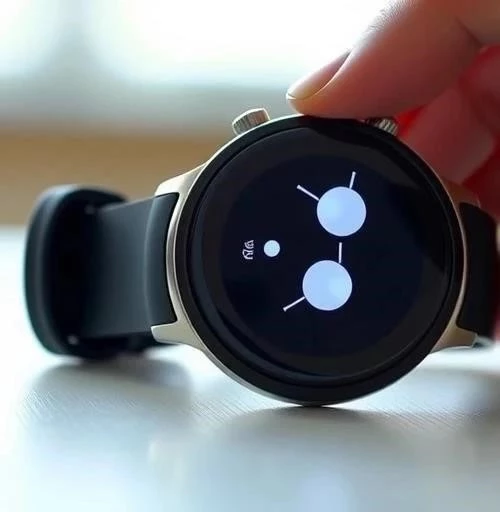
If your Galaxy Watch is switched off, you can usually start it with its Home/Power button. The exact button layout varies slightly by model, but the basic steps are much the same across Galaxy Watch generations. Follow the guide below, whether you are setting up a new watch or simply turning it back on.
Start the watch
- Find the physical buttons on the side of the watch. On most models, the upper button is the Home/Power button. It may have a red or orange ring, depending on the model.
- Press and hold the Home/Power button for a few seconds. Do not just tap it: a short press may only wake the screen if the watch is already running.
- Release the button when the Samsung logo appears. Give the watch time to start; the first boot, or a boot after an update, can take longer than usual.
Once the watch has started, the watch face or a setup screen should appear. If you see a PIN or pattern screen, unlock the watch in the usual way. If it asks you to pair with a phone, follow the prompts in the Galaxy Wearable app.
If the watch does not turn on
A black screen does not always mean the watch is broken. The battery may be completely drained, particularly if the device has been unused for a while. Place it on its compatible charging dock or wireless charger, making sure the back of the watch sits correctly against the charging surface. Use the charger supplied with the watch, or one confirmed to be compatible with your model.
Leave it charging for at least 15–30 minutes before trying again. If the battery is deeply discharged, the charging symbol may take a little while to appear. Check that the charger is connected to a working power source, and inspect the cable and adapter for damage. If possible, try another suitable wall adapter or outlet.
Check that the watch and charger are clean and dry. Remove any protective film that might be covering the charging area. Do not charge a wet watch, and do not use a damaged charger. If the watch becomes unusually hot, disconnect it and let it cool before seeking help.
Restart or force-restart a frozen watch
If the screen is frozen or the watch does not respond, first try a force restart. On many Galaxy Watch models, press and hold both the Home/Power and Back buttons together for about seven seconds, or until the Samsung logo appears. Button behavior can vary by model, so consult the user guide for your specific watch if this combination does not work.
A force restart is different from a factory reset: it normally restarts the device without deleting your personal data. Do not keep pressing buttons at random, and do not choose an option that says “Factory reset” unless you intend to erase the watch.
Turn it on after setup or a shutdown
If you have just unboxed the watch, charge it first if it will not start. Then power it on and open the Galaxy Wearable app on a compatible Android phone. Keep Bluetooth enabled and follow the on-screen instructions to pair the devices. Depending on the watch and phone, you may need to install an additional Galaxy Watch plug-in or update the app;
If the watch was shut down from its settings, the same press-and-hold method starts it again. A quick press usually turns the screen on or off; it does not necessarily power the whole watch down. To switch it off, open the watch’s quick settings or power menu and select the shutdown option, if available.
When to get more help
If the watch remains blank after charging and a force restart, try a known-good compatible charger and check the model’s manual for its button instructions. Persistent failure, a damaged screen, or repeated unexpected shutdowns may require service. Contact Samsung Support or an authorized repair provider, especially if the watch is under warranty. Avoid opening the watch yourself, as this can damage the device and affect its water resistance.
Quick checklist
- Hold the Home/Power button until the Samsung logo appears.
- If there is no response, charge the watch for 15–30 minutes.
- If it is frozen, try holding Home/Power and Back together for about seven seconds.
- Use the correct charger and check your model’s manual if the steps differ.



9 Comments. Оставить новый
I like that the guide explains what to expect after the Samsung logo appears, including setup and pairing prompts.
Clear, practical instructions. I especially appreciate the reminder to hold the Power button rather than just tap it.
The troubleshooting tips are straightforward and easy to follow. Checking the outlet and charger connection is a good first step.
The safety reminders about keeping the watch dry and avoiding a damaged charger are important additions.
The charging advice is useful for a watch that seems completely unresponsive. I’ll give it time on the charger before trying again.
Useful, concise instructions for getting a watch started and figuring out whether a drained battery might be the issue.
Helpful advice, and the note that a deeply discharged battery may take a while to show a charging symbol is reassuring.
A helpful overview for different Galaxy Watch generations, with sensible reminders about using a compatible charger.
This guide makes the process feel simple, especially for someone setting up a Galaxy Watch for the first time.