
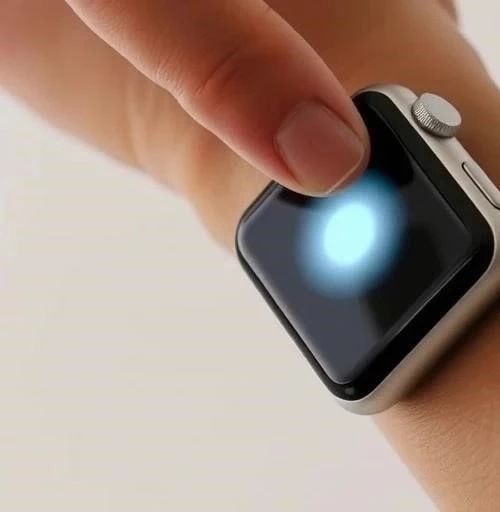
To switch on an Apple Watch Series 3, press and hold the side button—the oblong button below the Digital Crown—until the Apple logo appears. It may take a few seconds. Release the button when you see the logo and wait for the watch face to load. The Digital Crown alone does not turn the watch on.
If the watch does not start
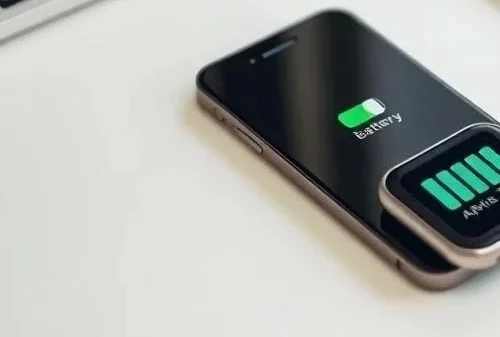
A depleted battery is the most common reason a watch appears unresponsive. Connect its magnetic charging cable to the back of the watch, then plug the adapter into a working power outlet. Make sure the back of the watch is centered on the charger; you should feel it attach magnetically. Leave it charging for at least 30 minutes before trying again. If the battery is deeply discharged, the screen may remain dark for a while before a charging symbol appears.
Check the power source rather than repeatedly pressing the button. Try a different outlet or compatible adapter, and inspect the cable and connector for visible damage. Remove any protective film, dirt, or debris that might prevent the charger from making contact. If the watch displays a red lightning-bolt symbol, it needs more charge. A green bolt indicates that it is charging.
Try a force restart
If the watch has charge but remains frozen or shows no response, force-restart it: press and hold the side button and Digital Crown at the same time for about 10 seconds, then release both when the Apple logo appears. This does not erase your content. Do not force-restart while a software update is in progress unless the watch has clearly become stuck for an extended period; interrupting an update can create additional problems.
After it turns on
To use the watch for the first time, place it near your iPhone and follow the pairing instructions on both screens. Keep the devices close together and make sure Bluetooth is enabled on the iPhone. If the pairing animation does not appear, open the Watch app on the iPhone and choose the option to pair a watch. A Series 3 is an older model, so compatibility with current iPhone software and available features may be limited. If setup fails, check Apple Support for device-specific guidance.
When to seek help
If the screen stays blank after an hour on a known-working charger, or the watch repeatedly restarts, overheats, or shows physical damage, stop troubleshooting and contact Apple Support or an authorized service provider; A worn battery or faulty charging hardware may need professional attention. Avoid opening the watch or using unapproved charging equipment, because either can damage it.
In short: hold the side button to power on; if nothing happens, charge the watch first. Use a force restart only when it is charged but unresponsive. These steps distinguish a normal empty battery from a software freeze and help prevent unnecessary resets or repairs.


6 Comments. Оставить новый
The pairing guidance is a helpful next step after the watch powers on, and it appropriately reminds readers to keep the iPhone nearby with Bluetooth enabled. Overall, the article is organized around the reader’s likely needs.
I appreciate that the article suggests checking the outlet, adapter, cable, and charger alignment instead of repeatedly pressing the power button. Those steps address common causes without requiring specialized tools.
The force-restart instructions are easy to follow, and noting that this does not erase content is reassuring. The warning about interrupting a software update adds useful context.
The instructions make the main distinction clear: the side button turns the watch on, while the Digital Crown does not. That direct explanation should help readers avoid an easy mistake.
Explaining the red and green charging symbols gives readers a simple way to judge whether the watch needs more power or is charging. This makes the troubleshooting section more informative.
The troubleshooting advice is practical, especially the recommendation to charge the watch for at least 30 minutes before trying again. A depleted battery can make a working device seem completely unresponsive.