
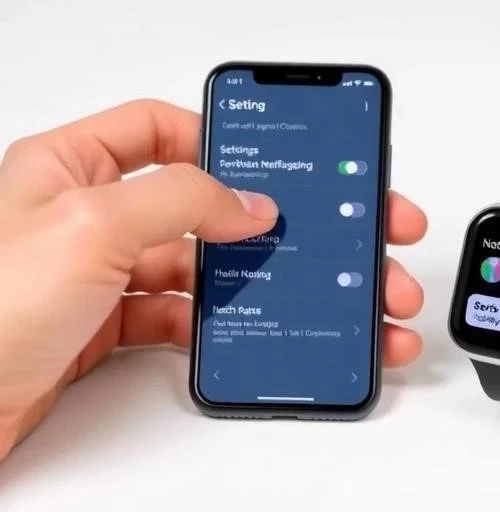
Apple Watch Series 5 can be used with WhatsApp, but what you can do depends on the watchOS version and the app version available in your region. Series 5 supports watchOS 10, but it cannot install newer watchOS releases that require later Apple Watch models. Before you begin, check the WhatsApp listing in the App Store to confirm that its current requirements are compatible with your watch.
Prepare your iPhone and watch
Your Apple Watch must already be paired with an iPhone, and WhatsApp Messenger must be installed and set up on that phone. Update WhatsApp from the App Store, then check for an available watchOS update in the Watch app on your iPhone. To see the watchOS version, open Settings > General > About on the watch; Keep the iPhone and watch close together, connected, and sufficiently charged while setting things up.
Series 5 is limited to watchOS 10. If the WhatsApp watch app requires a newer version, you will not be able to install it on this model. In that case, you can still receive WhatsApp notifications and, when supported by your settings, reply from your wrist.
Install the WhatsApp app on Apple Watch
- Open the App Store on your Apple Watch and search for WhatsApp.
- If the official WhatsApp app is listed and the watch meets its requirements, tap Get or the download button. Confirm the installation if prompted.
- Alternatively, open the Watch app on your iPhone, select My Watch, and look under Available Apps. Tap Install beside WhatsApp if it appears there.
- After installation, find WhatsApp in the watch’s app view and open it. Follow any instructions shown on the watch or iPhone, and allow the requested access to notifications or other features.
Use the official app from WhatsApp LLC rather than an unrelated app that imitates its name or icon. If WhatsApp does not appear in the watch App Store or in Available Apps, check the compatibility requirements, update the iPhone app and watchOS as far as your devices allow, and try again.
Turn on WhatsApp notifications
Notifications are useful whether or not the full watch app is available. On your iPhone, open Settings > Notifications > WhatsApp and turn on Allow Notifications. Choose where alerts can appear, such as the Lock Screen, Notification Centre, or banners. Then open the iPhone’s Watch app, tap Notifications, and find WhatsApp. If the option is available, enable Mirror iPhone Alerts From or switch WhatsApp on.
When the watch is unlocked and on your wrist, alerts can appear there instead of on the iPhone, depending on Apple’s notification rules and which device is in use. A Focus mode, muted chat, disabled notification permission, or a disconnected phone can prevent an alert from appearing. Check those settings before assuming the watch app is broken.
Read and reply to messages
Tap an incoming alert to read it. Depending on the app version and watchOS, you may be able to respond with a suggested reply, dictation, Scribble, or an emoji. If the official WhatsApp watch app is installed, open it to see the features currently supported on your device; these may include viewing conversations, reacting to messages, or recording a voice message. Available controls can vary by software version and account settings.
A watch is best for short interactions. For longer messages, media management, account changes, or features not offered on the watch, use WhatsApp on your iPhone. A notification preview is not the same as having the full phone app on your wrist, and some actions may require the iPhone to be nearby and connected.
Troubleshooting
- No app listed: Check the App Store’s current compatibility information. Series 5 cannot upgrade beyond watchOS 10, so a newer minimum requirement would rule out installation.
- No alerts: Confirm WhatsApp notifications are allowed on the iPhone, enabled in the Watch app, and not silenced by Focus or a muted chat.
- Messages do not update: Bring the iPhone and watch close together, check their internet or Bluetooth connection, and reopen WhatsApp. Restart both devices if needed.
- Installation is stuck: Check the watch’s available storage, connect it to power, and retry the download from the Watch app or watch App Store.
For the most reliable setup, keep WhatsApp updated on the iPhone, install only the official watch app if it is compatible, and use mirrored notifications as a backup. WhatsApp’s official website provides information about the service, while Apple’s Watch app and on-device settings are the best places to check pairing, software, and notification options.



3 Comments. Оставить новый
A practical overview for Series 5 owners. The explanation of what to try if WhatsApp does not appear sets realistic expectations without making the setup sound more complicated than it is.
The step-by-step instructions are clear and easy to follow. I also appreciate the warning to use the official WhatsApp app and to check both the Watch App Store and Available Apps.
This is a helpful guide, especially the reminder to check the app’s current compatibility requirements before trying to install it. The distinction between using the watch app and replying to notifications is useful.