
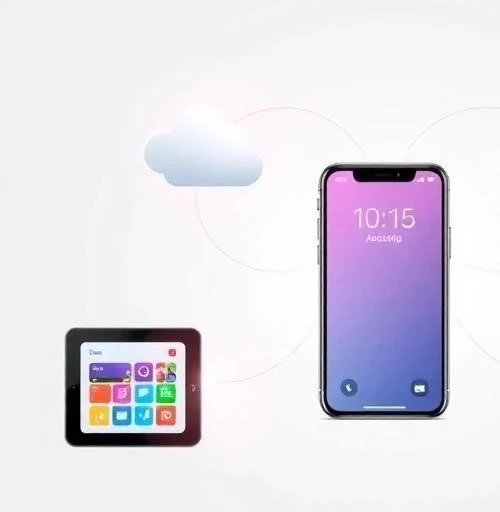
A Huawei account is more than a name and password attached to a phone. Think of it as a small passport for the Huawei ecosystem: one sign-in can connect your device to services for apps, cloud storage, personalization, backups, and—if you enable it—finding a lost device. You may also see it called a Huawei ID. The exact services and features available depend on your country, device, software version, and account settings, but the central idea is simple: your account helps Huawei services recognize you and work together.
That connection can make a new phone feel less like an empty room and more like a home with the lights already on. Your apps can be easier to find, selected information can follow you between supported devices, and useful services can be managed from one place. But an account is not magic, and it is not automatically a complete backup of everything on your phone. Here is what it can provide—and what to check before you rely on it.
A front door to Huawei services
After signing in, you can access Huawei services that ask for an account. Depending on regional availability, these may include AppGallery, HUAWEI Cloud, Themes, HUAWEI Video, and device-finding features. Instead of creating a separate identity for each service, you use the same Huawei ID to enter many of them.
This shared sign-in is convenient, but it is worth understanding what it means. The account is the key; each service is a different room. Signing in gives you the option to use those services, not a guarantee that every feature is available everywhere or that every service is enabled by default. Some may require you to agree to separate terms, choose preferences, or switch on a setting.
AppGallery: a store tied to your identity
AppGallery is Huawei’s official app marketplace. A Huawei account can let you sign in, manage certain account-linked activity, and use features offered by the store in your region. It is also useful when installing or updating apps that are distributed through Huawei’s platform.
App availability differs between markets, and no single store contains every app that exists. Before depending on an app for work, travel, banking, or another important task, check that it is available for your device and that its key functions work as expected. A Huawei ID gives you access to the store’s account features; it does not promise that every Android app or every Google service will be available on your particular phone.
For developers, Huawei offers a separate developer environment and tools. That is a different use of the ecosystem from an ordinary consumer account: registering as a developer can help a creator publish and manage products, but a regular Huawei ID does not automatically turn its owner into an app publisher.
Cloud storage: a shelf in the sky
HUAWEI Cloud can store or synchronize supported information, potentially including items such as contacts, calendar details, notes, or photos, depending on your device, settings, and region. If you use more than one supported Huawei device, synchronization can make selected information available across them. You might add a contact on a phone and later see it on a tablet, without manually copying it over.
Cloud storage is also useful when a device is replaced, reset, or damaged. If the right data was backed up or synced beforehand, you may be able to restore it after signing in again. The important phrase is “if it was backed up or synced.” Creating an account alone does not upload every file on your phone. You need to check what categories are selected, whether synchronization has completed, and how much storage is available. Free storage allowances and paid plans can vary or change, so check the current offer shown in your account.
Think of the cloud as a carefully maintained shelf, not an invisible duplicate of your entire device. A photo may remain only on the phone if cloud photo sync is off. A large video may not upload if there is not enough space or a connection. Before deleting local files, confirm that the copies you want are actually visible in the cloud service or on another device.
Backups and moving to a new device
A Huawei account can help make a device transition less stressful by connecting you to available cloud backups and synchronized data. Depending on your model and setup, you may be able to restore some information after signing in on a replacement phone. This can save time and reduce the risk of losing everyday essentials such as contacts or selected settings.
Still, backup coverage is not identical for every phone or every kind of content. App data, downloaded files, passwords, locally stored media, and information held by third-party apps may follow different rules. Some apps maintain their own backup systems; some data may be excluded; and some content may need to be transferred separately. Before trading in, resetting, or giving away a phone, review the backup screen and make a second copy of anything irreplaceable.
Find Device: a possible lifeline for a misplaced phone
If supported on your device and in your region, Huawei’s device-finding feature can help you locate a lost phone or tablet through your account. Depending on the available tools, you may be able to see its reported location, make it ring, or take other protective actions. This can turn a frantic search through sofa cushions into a more focused search of the map.
The feature must generally be prepared in advance. Sign in, open the relevant Huawei account or security settings, and enable the device-finding option. Location and network requirements may apply, and a phone that is switched off, disconnected, or otherwise unable to report its position may not show a current location. Check the instructions for your model rather than assuming the feature is active just because you have an account.
Finding a device is not a substitute for protecting it; Use a strong screen lock, keep recovery details current, and be cautious about messages claiming that a lost phone has been found. Never share your password or verification code with someone who contacts you unexpectedly.
Themes, video, and a more personal device
A Huawei ID can also connect you to personalization and entertainment services, such as Themes or HUAWEI Video where those services are offered. Themes may let you change the look of supported parts of the interface, while video services can provide access to available content. Sign-in can help a service remember preferences or manage its own account features.
These are quality-of-life extras rather than essential phone functions. Catalogues, subscriptions, payment options, and available features vary by location. A service shown in one country may be different—or unavailable—in another. If you are considering a paid plan, inspect its price, renewal terms, and cancellation process before subscribing.
One account across devices
For someone who owns several compatible Huawei products, the account can act like a thread linking them. Depending on the products and software, it may help coordinate cloud data or provide a consistent sign-in to supported services. A phone, tablet, or other device can then feel less like a stranger in the collection and more like another desk in the same workspace.
That does not mean every Huawei product shares every setting, file, or capability. Device compatibility matters, and synchronization must be configured for the data you want to share. If you prefer a device to remain separate, review its sign-in and sync options instead of assuming that account access is all-or-nothing.
Security and privacy: the key deserves a good lock
Your Huawei account may be connected to personal information and services, so protect it accordingly. Use a unique password that you do not reuse on other websites. Add a recovery phone number or email if the account settings allow it, keep those details up to date, and turn on additional verification protections when available.
Be selective when granting permissions or linking third-party accounts. A sign-in through another provider can involve that provider in authentication and may share certain information according to the permissions and privacy notices shown at the time. Read the prompts rather than tapping through them on autopilot. If a feature requests access that does not make sense for what you are trying to do, pause and investigate.
Also review active sessions, trusted devices, and account security options from time to time. If you sell or give away a device, sign out and remove the account properly before handing it over. If you plan to close your Huawei account, first download anything you may want to keep and check which services or devices could lose access. Deletion may be difficult or impossible to reverse once it is completed.
What a Huawei account does not give you
- It is not a universal Android key. A Huawei ID does not automatically provide access to every Google feature, Android app, or third-party service.
- It is not a complete backup by default. You must enable and verify the kinds of backup or synchronization you need.
- It does not guarantee unlimited storage. Capacity, free allowances, prices, and availability can vary.
- It does not ensure that a lost device can always be located. The relevant feature must be available and enabled, and the device needs suitable conditions to report its location.
- It does not make every service identical worldwide. Local rules, catalogues, languages, payment methods, and supported features can differ.
Is it worth creating one?
If you use Huawei devices and want AppGallery, cloud synchronization, themes, supported video services, or device-finding tools, a Huawei account can be genuinely useful. It gives you a central identity for services that would otherwise remain disconnected and can make everyday tasks—like restoring selected information or locating a misplaced phone—more manageable.
If you only use a Huawei phone for basic calls, messages, and offline tasks, you may not need every account feature. You can decide which services are worth using, and you should avoid enabling synchronization simply because a setup screen recommends it. The best account is not the one with every switch turned on; it is the one configured for your needs.
A sensible first-day checklist
- Create or sign in to your Huawei ID using recovery details you can access.
- Choose a strong, unique password and review available verification options.
- Open the cloud settings and select only the data you want to sync or back up.
- Check that an important contact, note, or photo appears in the cloud before trusting the backup.
- Enable Find Device if you want the option to locate the phone later.
- Explore AppGallery and other services, checking availability and terms in your region.
- Review permissions, storage limits, subscriptions, and account recovery settings.
The short version: a Huawei account gives you a shared doorway into Huawei’s connected services. Its most practical benefits are access to supported apps and services, optional cloud synchronization and backup, personalization, and tools that may help you find a device. Its value depends on what you switch on, what your device supports, and what is offered where you live. Treat the account like a useful key ring: keep the keys you need, protect them carefully, and check which doors they actually open.
7 Comments. Оставить новый
The regional caveat is more important than it first appears. Tech guides often describe features as universal; this one leaves room for the map to change depending on where you live.
I like that the article treats convenience and choice as two sides of the same coin. An account can smooth the journey, but the reader still gets to decide which services deserve a key.
The “small passport” image makes account setup feel less like paperwork and more like choosing which doors to open. I especially appreciate the reminder that signing in does not automatically switch every service on.
The article’s best quiet message is to check settings before trusting a service with your memories or routines. A few minutes of curiosity can be worth more than a dozen promises of convenience.
The house-and-rooms comparison is refreshingly clear: one identity, several separate services. It gives readers a simple way to think about permissions, settings, and regional differences.
A Huawei ID comes across here not as a magical safety net, but as a hub connecting selected tools. That grounded explanation is both more honest and more useful.
A useful guide for anyone who has mistaken “I have an account” for “everything is backed up.” That distinction could save someone a very unpleasant surprise during a phone upgrade.