
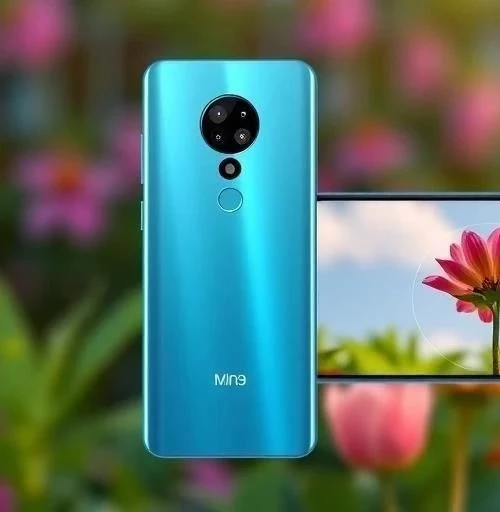
The “AI camera” on the Xiaomi Redmi Note 9 is the phone’s regular camera system working with software features that use scene recognition and automatic image processing. “AI” does not mean that the phone has a separate camera or can think like a person. It refers mainly to the camera app’s ability to analyse a scene and adjust image settings to suit it.
What the AI feature does
When AI is enabled in the camera app, the software examines what is in the frame. Depending on the scene and the camera app version, it may recognise subjects such as food, plants, people, pets, or landscapes. It then adjusts processing choices—for example, colour, contrast, exposure, or sharpening—to try to make the photo look more appealing. The result is automatic assistance: you take the picture as usual, while the phone chooses some settings for you.
The feature is most noticeable when the scene is clear and well lit. A landscape might appear more vivid, while a close-up of food may get stronger colour. These changes are preferences, not a guarantee of greater accuracy. AI processing can sometimes make colours look too intense or details look over-sharpened. If you prefer a more natural result, turn AI off and compare the pictures.
Is it a special camera lens?
No. “AI camera” is a marketing and software term, not the name of an additional lens. Redmi Note 9 versions commonly have a multi-camera rear setup, with a main camera and separate cameras for purposes such as ultra-wide, close-up, or depth effects. The precise specifications can vary by market and model version, so check your phone’s product information for its exact hardware. AI scene recognition is separate from those lenses: it is a software option that can influence how an image is processed.
How to use it
- Open the built-in Camera app.
- Choose the regular photo mode and frame your subject.
- Look for the AI button or icon on the camera screen. Tap it to switch scene recognition on or off; its appearance can differ between software versions.
- Take a photo, then compare it with a shot made with AI disabled. Keep whichever rendering you like better.
If you cannot see an AI icon, check that you are in Photo mode, rather than video or another mode. The interface can change after a system or camera-app update, and some regional software versions may offer different options. Do not assume that every Redmi Note 9 has identical menus.
AI camera versus other camera modes
AI scene recognition is not the same as Portrait mode, Night mode, or HDR. Portrait mode aims to separate a person or object from the background and create a blurred-background effect. Night mode uses image processing to improve photos in low light, while HDR combines exposure information to handle bright and dark parts of a scene. These features may be available separately, and their availability or behaviour can vary with the camera app. AI does not automatically turn every mode on, nor does it replace choosing the right mode yourself.
Limitations and practical tips
- It cannot fix every problem. Low light, movement, a dirty lens, or missed focus can still produce a blurry or noisy picture.
- It may change the look. Scene detection can boost colour or contrast in ways that do not match the real scene.
- Lighting matters. For clearer results, clean the lens, hold the phone steady, and tap the subject on screen if focus or exposure needs help.
- Try both settings. AI is useful for quick snapshots, but switching it off may suit portraits, subtle colours, or scenes where faithful colour matters.
In short
The AI camera on the Xiaomi Redmi Note 9 is an optional software aid that recognises a scene and adjusts image processing. It is not a separate camera, an artificial-intelligence chatbot, or a promise of professional-quality photos. Use it when you like its automatic enhancement, and turn it off whenever you prefer the camera’s less processed result.


8 Comments. Оставить новый
An accessible explanation with practical advice. It helps readers understand what the feature does without confusing software processing with camera hardware.
I appreciate the reminder that AI-enhanced colours may look less natural. Comparing photos with the feature on and off is a practical tip.
This is useful for anyone wondering whether “AI camera” means an extra camera. The distinction between lenses and image processing is clear.
The explanation is straightforward and avoids making the camera’s AI sound more advanced than it is.
Good point that the exact camera specifications can vary by market. Checking the information for your particular model is sensible.
I like the balanced description: automatic adjustments can improve a photo, but they may also make it look oversaturated or over-sharpened.
This clearly explains that the AI camera is a software feature rather than a separate lens. The examples make the concept easy to understand.
A helpful overview for Redmi Note 9 owners. It distinguishes scene recognition from the phone’s physical camera hardware very well.