
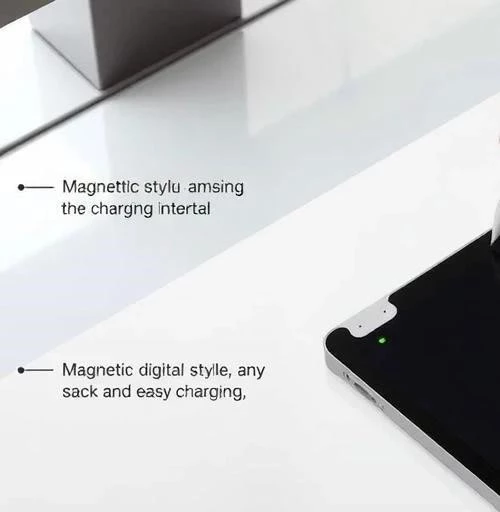
A Huawei stylus can look like an ordinary pencil, but its charging routine depends on the exact model․ Some HUAWEI M-Pencil versions draw power wirelessly from a compatible tablet; others need a separate charging accessory․ The magnetic strip on a tablet may help the pen attach, pair, or charge—but those are not always the same thing․ Before connecting anything, identify your stylus and tablet․ A minute of checking can save you from a long, fruitless wait beside a pen that is simply not charging․
First, identify what you have
Look for the model name or generation in the stylus packaging, product information, or the device details in Huawei’s support materials․ Then check whether that particular stylus is compatible with your MatePad or MateBook and how Huawei specifies that it should be charged․ “M-Pencil” covers more than one generation, and charging methods are not universal․ Even two pens that look almost identical can require different accessories․
- Magnetic wireless charging: Supported models charge when attached in the designated position on a compatible device․ Huawei’s instructions for the specific tablet show which edge or marked area to use․
- Separate stylus charger: Some versions require a dedicated M-Pencil charging accessory․ The pen attaches to that accessory, which is then connected as instructed․
- Other stylus models: M-Pen, M-Pen Lite, and other Huawei-compatible pens may have different designs and power arrangements․ Do not assume an M-Pencil method applies to them․
For example, Huawei support describes attaching supported styluses to the tablet or to a charging device․ Some newer tablet-and-stylus combinations support magnetic charging, while older or different combinations may require the dedicated charger․ Retail listings and user comments can be useful clues, but use the official compatibility information for your exact model as the final word․
Method 1: Charge directly on a compatible tablet
- Wake and unlock the tablet․ Make sure it has power and is operating normally․ If the battery is nearly empty, charge the tablet first; this makes pairing and battery checks easier․
- Find the designated magnetic charging area; It is often along an edge, but its position varies by tablet․ Check the user guide rather than guessing from where the pen happens to stick․
- Place the stylus in the correct orientation․ Align its flat side, groove, or marked area with the tablet’s charging strip as shown in the instructions․ A pen can cling magnetically without making the electrical connection needed for charging․
- Look for a response․ A pairing prompt, charging icon, or battery information may appear on screen, depending on the device and software․ If nothing happens, gently reposition the pen and confirm that both products support this charging method․
- Leave the stylus attached while it charges․ Keep the tablet on a stable surface and avoid repeatedly lifting or sliding the pen․ Check the displayed battery level later to confirm that it has increased․
Magnetic attachment is a little like a key meeting its lock: closeness is not enough; alignment matters․ If the pen snaps onto the tablet but the battery level does not change, do not press it harder․ Remove it, check the model instructions, and try the correct position once more․
Method 2: Use the dedicated M-Pencil charger
If your model needs a separate charger, use the charging accessory specified for that generation․ Huawei sells or supplies dedicated M-Pencil charging accessories for certain models; the accessory may connect to a compatible tablet or another supported power source according to its instructions․ A charger made for one generation is not automatically suitable for another․
- Place the pen into the charger in the orientation shown in its guide․ Make sure it sits securely rather than resting at an angle․
- Connect the charger using its intended cable or connector․ If it attaches to a tablet, verify that the tablet is compatible and switched on․
- Check for a charging indication on the tablet, where available, or consult the charger’s instructions for its status indicator․
- When the battery has recovered, detach the stylus carefully․ Avoid pulling the cable or twisting the pen against the charger․
Do not substitute a random magnetic puck, cable, or adapter just because it seems to fit․ Accessories can look alike while using different contacts or charging arrangements․ If the original accessory is missing, match the replacement to the stylus model and confirm compatibility with Huawei or a reputable seller before buying․
How long should charging take?
Charging time varies with the generation, the stylus’s starting battery level, the charging method, and the condition of the battery․ A published guide for one M-Pencil model may quote roughly half an hour for a full charge, but treat that as a model-specific estimate, not a promise for every Huawei pen․ Use your own product documentation for the expected time․
For a useful check, note the battery level, leave the pen correctly positioned for a reasonable period, and check again․ A rising percentage is better evidence than a magnet’s grip or a notification that appeared only when the pen first connected․ If the level remains unchanged, use the troubleshooting steps below rather than leaving the device charging indefinitely․
How to check the battery level
The exact display depends on the tablet, stylus, and software version․ When a compatible pen is attached or paired, the tablet may show a pop-up with its battery status․ On some devices, battery information is available through settings or a connected-device panel․ Look for the stylus in the tablet’s Bluetooth or accessory settings if your model uses that route, and consult the tablet guide for the correct menu․
If no percentage is shown, that does not by itself prove that the pen is broken․ Some combinations provide less detailed battery information than others․ Confirm the charging method and test whether the stylus writes or draws․ When possible, compare the battery reading before and after charging; that simple before-and-after check is more informative than guessing from how long the pen has been attached․
If the Huawei stylus will not charge
- Recheck compatibility․ Confirm the exact stylus generation and tablet model․ A tablet may support a different M-Pencil generation, or may pair with a pen without supporting its charging method․
- Check alignment․ Remove the stylus, inspect the marked charging area, and attach it again as shown in the official instructions․ Do not rely on any place where the magnet happens to hold it․
- Inspect the accessory․ If you use a separate charger, check that it is the correct one, is connected properly, and shows no visible damage; Try an approved cable or power source if the instructions allow it․
- Remove obstructions․ A thick or unsuitable tablet case may interfere with magnetic positioning․ Take the case off temporarily and try again․ Keep metal objects and debris away from the contact area․
- Give a deeply depleted battery time․ If the pen has been unused for a long period, allow it to charge using the correct method before deciding that it has failed․ Check again after a short interval․
- Reconnect if needed․ If the pen charges but is not recognized, follow Huawei’s pairing instructions for the specific tablet and stylus․ Restarting the tablet may help with a temporary connection issue, but it cannot fix incompatible hardware․
- Stop if anything gets unusually hot or looks damaged․ Disconnect the accessory where safe, and contact Huawei support or an authorized service provider․ Do not open the stylus or attempt a battery repair yourself․
Good habits for a longer-lived pen
Keep the charging area and any charger contacts clean and dry․ Wipe dust away with a soft, dry cloth; avoid liquids, sharp tools, and abrasive cleaners․ Store the stylus where it will not be bent, crushed, or exposed to extreme heat․ If you use a magnetic charging edge, make sure the pen is seated correctly before carrying the tablet, so it does not slip off and get lost․
If you will not use the stylus for a while, check its battery occasionally and follow Huawei’s storage guidance․ Lithium batteries generally fare better when they are not left completely depleted for extended periods․ There is no need to keep reconnecting the pen every few minutes to chase a full reading: a confirmed rise in battery level is enough to show that charging is taking place․
Quick answer
To charge a Huawei stylus, first identify its exact model․ Attach it to the tablet’s designated magnetic charging area only if that stylus-and-tablet combination supports wireless charging․ If the model requires a separate M-Pencil charger, use the compatible accessory instead․ Check the on-screen battery information where available, and verify that the level rises․
The key is not simply “stick the pen to the tablet․” It is “match the right pen, the right tablet, and the right charging method․” Once those three pieces agree, charging is usually straightforward—and your stylus can return to the important work: turning a blank screen into notes, diagrams, or the first line of something unexpected․
Before you begin: a three-point checklist
- Know the exact Huawei stylus model and generation․
- Confirm its charging method with Huawei’s support page or product guide․
- After connecting it, check for a charging indication or a higher battery reading․

1 Comment. Оставить новый
A useful reminder that magnets can be misleading little storytellers: attachment, pairing, and charging may look like one action, but they are not always the same. Checking the exact pen-and-tablet pairing before trying to charge it is the kind of small detective work that saves both time and frustration.