
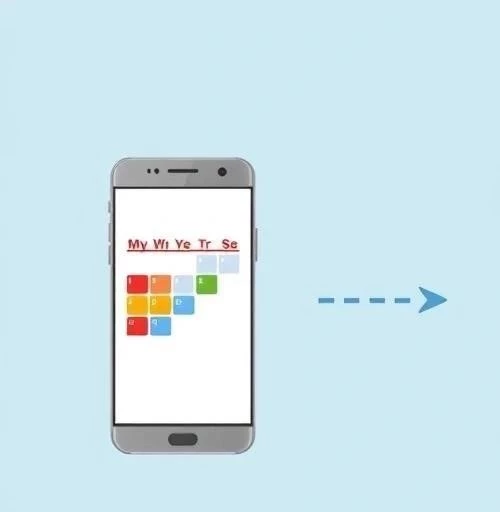
Moving to a new Xiaomi phone does not always move calendar events automatically. The right method depends on where the events are stored: in a Xiaomi account, a Google account, another service, or only on the old phone. Before resetting or giving away the previous device, identify the calendar account and confirm that its events are safely synced or exported.
Check where your events are saved
Open the Calendar app on the old phone and look at the calendars or accounts shown in its settings. An event may belong to a Xiaomi account, Google Calendar, or another account. If several calendars are displayed, check a few events individually; their account labels can reveal where the data is stored. Events saved only locally may not appear on the new phone until they are backed up or exported.
Also check that the old phone has an internet connection and that automatic date and time are correct. Synchronization can be delayed while the device is offline, and incorrect time settings may make events appear at the wrong time.
Sync through Xiaomi Cloud
- On the old phone, open Settings and sign in to the Xiaomi account that you intend to use on the new device.
- Open the Xiaomi account or Xiaomi Cloud settings. The names and location of these options can differ between MIUI, HyperOS, regions, and software versions.
- Find the synchronization settings and enable calendar synchronization if it is offered. Allow the phone to finish syncing while connected to the internet.
- On the new Xiaomi phone, sign in to the same Xiaomi account and enable the corresponding calendar sync option.
- Open Calendar and give it time to update. If events do not appear, pull down to refresh or check the account and sync settings again.
Xiaomi Cloud features vary by country, account type, and system version. If there is no calendar option, do not assume that the events are backed up just because other data, such as contacts, is syncing. Check the account settings and use another method below when necessary.
Use Google Calendar when events belong to Google
If the old phone displays events under a Google account, add that same account to the new phone. Go to Settings > Accounts or Passwords & accounts, choose Google, and sign in. Make sure Calendar synchronization is enabled, then open the Calendar app and select the Google calendar you want to display. Menu labels vary between devices.
You can also install or open Google Calendar and verify that the events are visible there. This is a useful check: if the events appear in the Google account on the old phone but not on the new one, the issue is usually account selection, sync status, or display settings rather than a need to copy each event manually. Do not create duplicate events while synchronization is still in progress.
Export and import an ICS file
For calendars that support export, an ICS file can provide a separate copy of events. Look in the calendar app or the relevant calendar service for an export option. Save the file somewhere accessible, such as a computer or secure cloud storage, then use the destination service’s import function to add it to the account used on the new phone. The exact steps depend on the app or service.
After importing, check a selection of past and future events, including recurring events, reminders, and time zones. Importing the same file more than once may create duplicates. Keep the original account or a copy of the file until you have confirmed that the new calendar contains the required information.
What Mi Mover can and cannot do
Mi Mover is Xiaomi’s phone-to-phone transfer tool and may be useful during initial setup. Install or open it on both devices if it is available, follow the on-screen instructions, and select the data categories offered. However, Mi Mover should not be treated as a guaranteed calendar backup: transfer options and support for app data vary by model and system version. Calendar events connected to an online account are generally best restored by signing in to that same account and syncing.
ShareMe, Bluetooth, and ordinary file copying are not reliable ways to transfer calendar records by themselves. They can move files, but do not necessarily move events stored inside a calendar app. Use them only if you have an exported calendar file that the receiving app can import.
Before erasing the old phone
- Compare the number and dates of events on both devices, including recurring entries.
- Check that the correct calendars are visible and that reminders work.
- Confirm that events from each account have appeared; one account may sync while another does not.
- Keep the old phone and any exported backup until you are satisfied with the result.
In brief: sign in to the same Xiaomi or Google account on both phones and enable calendar synchronization when available. If the calendar is local or the cloud option is missing, use the calendar service’s export and import feature. Mi Mover may assist with setup, but verify the result before deleting anything from the old device.
2 Comments. Оставить новый
The guidance appropriately notes that Xiaomi Cloud options can vary by region and software version. The article would be more complete if it also covered the alternative transfer methods mentioned in its introduction.
The article clearly explains why identifying the calendar account on the old phone is an important first step. Its reminder to verify that events have synced before resetting the device is especially useful.