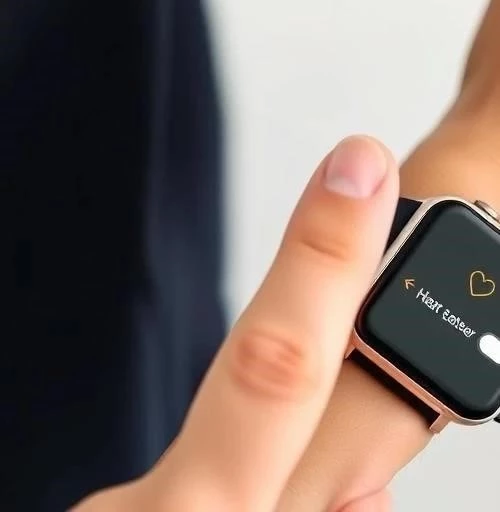
Your Apple Watch can be a tiny coach, quietly checking your pulse while you work, sleep, or climb a hill. But sometimes you want less tracking: perhaps you are conserving battery, simplifying your health data, or simply prefer not to have your heart rate measured. You can disable the background heart-rate sensor in settings. The important detail is that Apple separates heart-rate measurement from heart-rate alerts and workout features, so choose the switch that matches what you want to stop.
Turn off heart-rate measurements
The most direct route is on your iPhone:
- Open the Watch app on the iPhone paired with your Apple Watch.
- Tap My Watch, then open Privacy.
- Find Heart Rate and switch it off.
On many watchOS versions, you can also change the setting directly on the watch: open Settings, tap Privacy & Security (or Privacy on some versions), choose Health, then Heart Rate, and turn off the sensor. Menu names can vary slightly by watchOS release. If you cannot find the option on the watch, use the Watch app on your iPhone, which usually provides the clearest route.
Once disabled, the watch stops taking routine background heart-rate readings. It will not keep producing new pulse measurements just because the Heart Rate app is open on the screen. You can re-enable the setting at any time by following the same path and switching Heart Rate back on.
Stop alerts without disabling the sensor
If your real annoyance is a notification rather than the sensor itself, leave Heart Rate on and change the alerts instead. On your iPhone, go to Watch → My Watch → Heart. There you can adjust or disable notifications for high heart rate, low heart rate, and an irregular rhythm, where those options are available.
This is a useful middle ground: the watch can still record readings for health and fitness features, but it will not interrupt you with the selected alerts. Turning off alerts does not turn off heart-rate tracking, and disabling tracking is not a substitute for changing alert settings. Check the labels carefully before you switch anything.
What changes when you switch it off?
Disabling heart-rate monitoring can reduce some health and fitness information. Workouts may lack heart-rate data, and features that rely on pulse readings may be limited or unavailable. Resting-heart-rate trends and other measurements can have gaps. Depending on your model, region, and software, certain heart-related features may also require the sensor to be enabled. Your previously recorded Health data is not necessarily erased; turning off the sensor mainly prevents new readings from being collected.
If you use a third-party fitness app, it may have its own permissions and settings. Turning off the watch’s heart-rate sensor prevents it from supplying fresh readings, but it is still worth reviewing the app’s access in the iPhone Health app: tap your profile picture, open Apps or Data Access & Devices, choose the app, and review what it can read or write.
Trying to save battery instead?
You may not need to disable the sensor completely. During a workout, open the Watch app on iPhone, tap My Watch → Workout, and look for Power Saving Mode. This mode can reduce heart-rate and other measurements during workouts to extend battery life. Its exact behavior and availability depend on the watch and software version, so read the description shown on your device.
Low Power Mode can also affect background activity, but it is not the same as permanently turning off Heart Rate. Likewise, removing the Heart Rate complication from a watch face only removes the shortcut or display; it does not disable the sensor. Theater Mode dims the screen—it is not a heart-rate switch either.
Quick checks if the setting seems missing
- Update watchOS and iOS, then look again in the Watch app’s privacy settings.
- Confirm that you are using the iPhone paired with the watch.
- If a managed work or family device has restrictions, some settings may be controlled by its organizer or administrator.
- Restart both devices if a setting appears to change but readings continue. Give the watch a little time to sync before checking Health.
Choose the quietest option that fits
For no routine pulse readings, switch off Heart Rate in privacy settings. For fewer interruptions, disable only the alerts you do not want. For longer workout battery life, try Workout Power Saving Mode. These are different controls, and picking the smallest change that solves the problem lets your Apple Watch stay useful without measuring more than you intend.
A gentle reminder: Apple Watch is not a substitute for medical care. If you are changing these settings because of symptoms or a health concern, speak with a qualified healthcare professional rather than relying on a wearable—or on the absence of a notification.